
How to Convert PDF to JPG: A Step-by-Step Guide
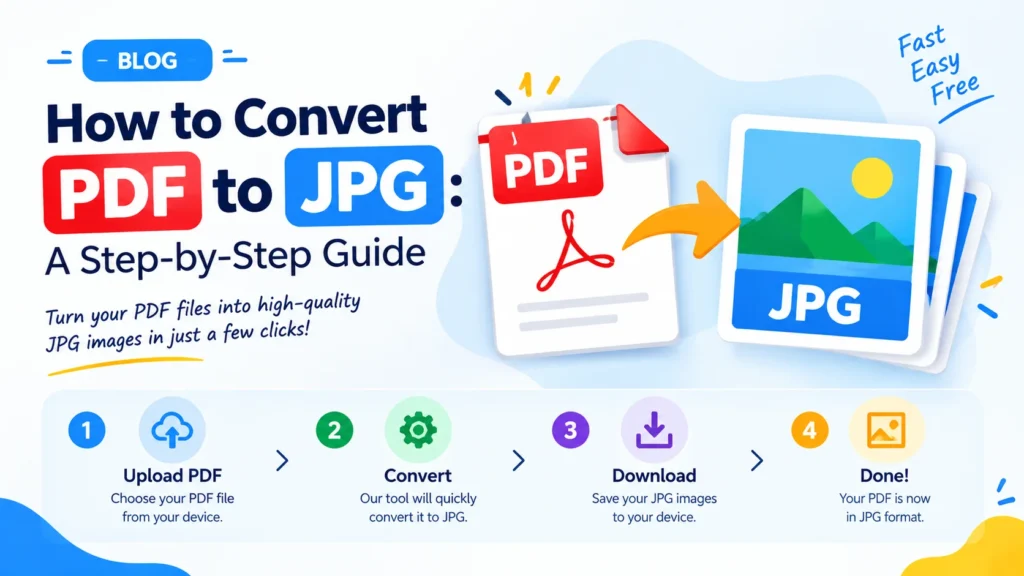
PDF’s are great for distributing documents that keep their layout and formatting, but sometimes you need images rather than a PDF. You could post a page on social media, send a scanned page via a messaging app, add a page to a presentation or even incorporate a page image into your website, for instance.
The simplest is to convert PDF to JPG. The process converts PDF pages into images which you can view, share, upload and use on multiple devices.
This guide will show you how to convert PDF to JPG online without paying a cent online, convert many PDF pages to images, preserve image quality and use various devices to finish the conversion.
PDF to JPG Converter : https://freeconverterlab.com/pdf-to-jpg-converter/
What Is PDF to JPG Conversion?
PDF to JPG conversion involves converting the pages of a PDF file to JPG or JPEG image files. JPG is a commonly used image format, which compresses images to save storage space while still achieving a good visual quality.
For instance, if you have five pages in your PDF, you can get five images as the result of converting it to JPG, one image for each page.
You can easily convert PDF to images without manually creating them with the help of a PDF to image converter.
PDF to JPG conversion can be helpful for the following:
- Posting document pages on social networks.
- Posting photos on websites and web forms.
- Creating image previews of PDF documents.
- Importing documents for use in presentations.
- SMS Messaging: Sending web pages via messaging apps.
- Display PDF content in programs that can accept images but not PDFs.
Why Convert PDF to JPG?
There are several benefits to be gained from converting PDF files to JPG images.
- Easier Sharing
Images with .jpg extension can be viewed on just about any smart phone, tablet, or computer. They can be sent via email, messaging apps and social media without the recipient having to download a PDF reader.
- Simple Website Uploads
There are some websites or forms that will accept images, but not PDF files. You can make your document pages compatible by converting them to JPG images.
- Convenient Image Editing
After converting PDF pages to JPG, they are able to be opened in numerous photo editors and image processing programs. It will be useful if you need to crop a page, add annotations or change its appearance.
- Creating Thumbnails and Previews
The PDF pages can be exported as images so that website owners, bloggers, teachers and designers can create presentations, visual examples, or PDF page previews.
- Better Compatibility
Most browsers, image viewers and mobile devices support JPG. Useful when the only information you want to view as an image is a single page, rather than a PDF.
How to Convert PDF to JPG Online for Free
One of the easiest ways to convert PDF to JPG, without downloading any extra software, is by using an online converter.
Here are some steps to start.
Step 1: Open an Online PDF to JPG Converter
Go to Free Converter Lab and launch the PDF conversion tools that appear. Use a PDF to JPG converter; if this option is available.
Online pdf to jpg converter free converts a pdf file online without the need of a dedicated application.
Step 2: Upload Your PDF File
Select the upload option and drag and drop in the PDF file or select the file from your computer/mobile device.
Please select the right document before uploading. If you have sensitive data on your file, you must read the privacy policy and file-handling of the converter before using them.
Step 3: Select JPG as the Output Format
Choose JPG or JPEG as the desired output format.
The image format is the same for JPG and JPEG. The difference in the extensions is mostly historical – both are used for the same kind of image file.
If the tool has the ability to set image-quality or resolution, choose an appropriate setting for the job.
Step 4: Start the Conversion
Click on the convert button to start converting your document.
The converter will convert the PDF pages to images. The processing time will vary depending on the number of pages, file size, size of pages and the tool used.
Step 5: Download Your JPG Images
Once it is done, download all of the JPG files.
In some tools, each page is presented as an image, and in others, several images are included in a ZIP file for quick downloading.
Open the downloaded images and verify the formatting and content of the text, graphics and page layout.
That’s it! You’ve transformed your PDF into JPG images without taking screenshots for each page.
How to Convert PDF Pages to JPG
If you have several pages in your PDF, you might want to convert the whole document rather than converting each page of the document.
It is simple and easy:
- Launch a PDF to JPG conversion software.
- Please upload your multi page PDF.
- Choose JPG as the output format.
- If it’s available, select the all-pages option.
- Start the conversion.
- Save the images or zip file.
You can convert several PDFs to JPG in a single step.
For instance, if you have a PDF with a hundred pages, that file could generate 100 images in JPG format. All the images are the rendered pages of the original document.
Can You Convert Only One PDF Page?
Yes. If you only want a certain page, check your converter for the option to select pages. Choose the appropriate page(s) to convert before you begin the process.
If it does not have the ability to select a page, you can get the page you want as a separate PDF first, and then convert it to a JPG.
How to Convert PDF to JPG Without Losing Quality
One of the frequently asked questions is if there is any loss of quality when converting PDF to JPG?
JPG is a lossy compression, meaning that there is a possibility that some image information will be lost. But it’s possible to get a clear, readable image by selecting appropriate resolution and compression parameters.
Let’s see some helpful tips to convert PDF to JPG without compromising quality the most.
1. Choose a Higher Resolution
Some converters support higher degrees of DPI, and the higher the resolution, the more you will see, particularly when displaying small text and fine lines.
- The range of 72–96 DPI may be adequate for initial screen thumbnails.
- 150 DPI: Works well for usage in a regular document.
- When printing in detailed material, such as letters, it is important to start with 300 DPI.
These are general guidelines and not requirements. The best resolution will vary based on page size, content and intended use.
2. Use High-Quality JPG Settings
When clarity is the key, select a high quality setting if the converter has a quality slider.
A higher quality will result in larger files, but a stronger compression will result in smaller files (but some artefacts may be noticeable).
3. Avoid Repeated Recompression
Opening, editing and saving a JPG repeatedly can cause further compression losses. If possible, do not delete the original PDF file, and make a new JPG export each time.
4. Check Text and Fine Details
Once converted, zoom in and check small text, diagrams, tables and thin lines. If it’s still blurry, adjust the output resolution or choose another converter.
Note: JPG conversion will not always ensure that all PDF content will be preserved perfectly. For a more precise text extraction, searchable content, and editable document elements, a different conversion method might be better suited.
How to Convert PDF to JPG on Windows
For Windows users, they may convert PDF files online or with desktop software that is compatible with Windows.
The online approach is typically convenient because it doesn’t need to install a new application.
- On your Windows computer, open your browser.
- Check out a PDF to JPG converter.
- Upload the PDF document.
- Choose JPG as the output format.
- Start the conversion.
- Save the pictures to your computer.
It is a handy solution to PDF to JPG on Windows without having to install additional software.
If you need confidentiality, you can use an offline application that works with files on your desktop and meets your security needs, as long as you don’t need to share it.
How to Convert PDF to JPG on Mobile
Documents can also be converted from an Android phone, iPhone or tablet.
A PDF to JPG online free browser-based application will operate on mobile devices without you having to install a PDF to JPG application.
Follow these steps:
- Use your phone to go to the internet.Use your mobile browser.
- Go to an online pdf to jpg converter software.
- Choose your PDF from the files on your device.
- Choose JPG as the output format.
- Start the conversion.
- Download and find the images in your downloads/files folder.
The download location depends on the device, browser, and operating system you’re using.
When the PDF is large, downloading the zip archive might be simpler than saving the images individually.
PDF to JPG vs PDF to JPEG: What is the Difference?
There is no significant difference between the two formats, JPG/JPEG. They are both used for the same image format.
Some of the reasons for .jpg gaining popularity are the use of 3 character extensions by older versions of the Windows operating system and .jpeg is also a valid extension.
In this way, a PDF to JPEG converter typically does the same sort of conversion as a PDF-to-JPG tool.
Select any extension that your site, application or workflow can support.
How to Save PDF as JPG: Common Methods
There are several ways to save a PDF as a JPG image.
Method 1: Use an Online Converter
It is useful for converting a full document, or several pages, without having to download software.
Method 2: Use Desktop Software
There are PDF applications that enable you to export the pages as image files. Depending on the software, you can choose the image format, resolution and quality.
Method 3: Use a Screenshot
To get a quick glimpse, you can take a screen shot and save it as an image file. However, screen shots may not be of high resolution, may show interface elements or may be cropped.
If you are looking for full-screen results, you will more likely want to convert directly rather than using screenshots.
PDF to JPG vs Extracting Images From a PDF
Creating PDF to .jpg does not equal to extracting images out of a PDF.
PDF page conversion forms an image of the complete rendered page, including the page text, graphics and layout.
If the PDF is structured and has the software to support it, then image extraction can be used to retrieve image objects that are already embedded within the PDF itself.
Select page conversion to get a JPG version of each page. Pick image extraction if you’re only looking to extract a photo, illustration or another type of embedded image from a document.
Common Problems When Converting PDF to JPG
The outcome images may not be what is expected at times. Below are some potential problems and solutions.
Blurry Text
Possible work-around: Set output resolution higher or export to a higher quality setting.
Large JPG Files
Possible solution: Reduce the resolution if appropriate or use a slightly stronger compression setting. Make sure the text is more readable.
Missing or Incorrect Formatting
Possible solution: Use a different converter and check the source PDF for unusual fonts, transparency or complex page elements.
Only One Page Is Converted
Solution: Ensure that the converter is exporting all pages, not just the first page.
The file will not upload.
Solution: Consider the top file size and supported PDF features. Break up the document into smaller pieces or use a desktop compatible converter.
Download the images in a Zip file.
Solution: Unzip the archive with the file manager or an archive utility on your device.
Benefits of Using a Free Online PDF Converter
Users who are not interested in installing special software can use a free online PDF converter to convert documents.
Potential benefits include:
- Convert documents directly in a Browser!
- Cross-device access: Connect with a compatible computer, tablet or smartphone.
- Time savings: Batch conversion, convert multiple pages at a time.
- Create JPG images for websites, presentations, and sharing (flexible output).
- Easy workflow: upload, convert and download in a few simple steps.
When selecting a service, verify their file-size limits, features supported, privacy policies in use and whether they add watermarks or limit conversions.
Conclusion
You can easily share document pages, upload images to websites, make a presentation, and view a document on various devices by converting PDF to JPG.
Of course, if you need something done quickly you can go the alternative route of using one of the PDF to jpg converter websites on the internet, upload the PDF file, choose the jpg output option and then download the jpg images. If your PDF contains several pages, make sure to use a tool that allows for batch conversion to save time.
The optimal results will be obtained by selecting the right resolution, applying high-quality export options and checking downloaded images before posting.
Check online file conversion solutions and make your document procedure easier with Free Converter Lab.
Frequently Asked Questions (FAQs)
1. How do I convert PDF to JPG online for free?
Open an online PDF-to-JPG converter that is compatible with you, upload your PDF, choose the JPG output format, initiate the conversion process and download the images.
2. What is the easiest way to convert PDF to JPG?
An online converter is usually the simplest way to achieve this since it lets you upload a PDF, and download JPG pictures straight from your browser without software installation.
3. Can I convert PDF to JPG without software?
Yes. You can use a browser based converter to convert PDF pages to jpg images without having to download and install a special desktop application.
4. How can I convert each PDF page to JPG?
Upload the multi-page PDF to a converter which can convert all pages. Depending on the features of the tool, each page could be generated as a separate JPG image.
5. How do I convert PDF to JPG without losing quality?
Select an appropriate resolution, apply high quality JPGs and examine the output. The conversion from a lossless format to a lossy JPG format is not guaranteed, as JPG is a lossy format.
6. Is JPG the same as JPEG?
Yes. The image format is the same for both JPG and JPEG. The extensions vary, but the actual format is pretty similar.
7. How do I convert PDF to JPG on Windows?
Open a web-based PDF to JPG converter in your Windows browser and upload the PDF, choose JPG and execute the conversion. Download the images and you’re done. There are also desktop software options that are compatible.
8. Can I convert PDF to JPG on my mobile phone?
Yes. A mobile browser and an online PDF to JPG converter can be used to upload a PDF, convert the pages to an image in JPG format, and download the converted images.
9. Can I convert multiple PDF pages into JPG files at once?
Yes. Use a converter which supports batch or all-page conversion. It can create individual JPG files for each page, and can provide a Zip file for downloading all of the files at once.
10. What is the difference between converting PDF pages and extracting images from a PDF?
PDF to JPG will produce images for whole pages. Extracting images will get the individual images from the PDF file, not the page layout.
