
How to Format JSON Online: A Beginner-Friendly Guide
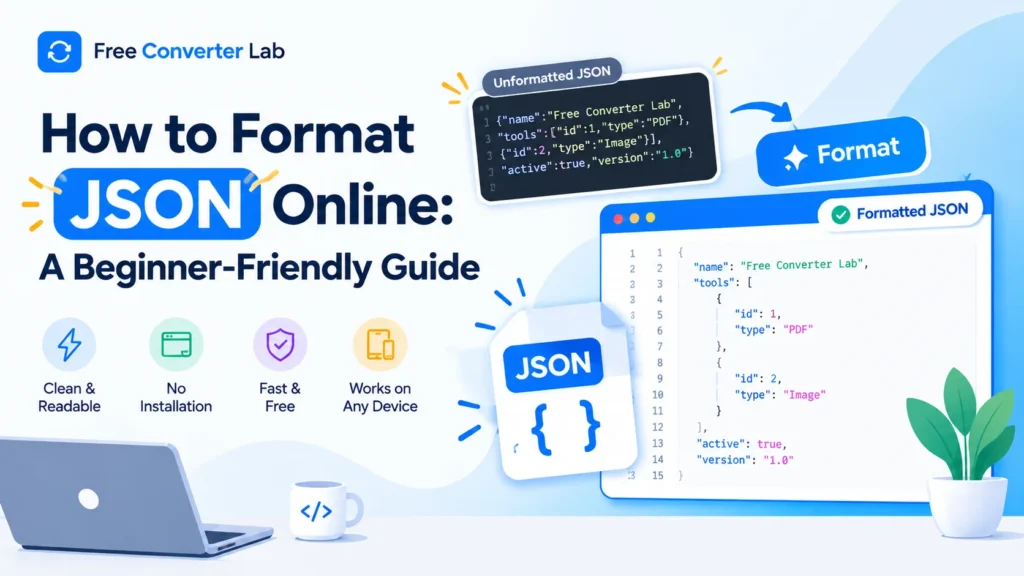
One of the most popular data formats used in websites, applications, APIs and software development is JSON, or JavaScript Object Notation. It makes it easy to store and share structured data in a readable text format. But when JSON data is presented in one line or with varying spacing it can be hard to read.
This is where learning about JSON formatting online comes in handy. A JSON formatter will help structure your data, indentation, line breaks and spacing, that will help you understand, debug and maintain your data.
Learn how to format a JSON file, how to use an online JSON formatter, find out which errors are present in your JSON file, and how to make your data more readable without downloading extra software, all this is described in this guide whether you are a beginner, student, a web developer, or an API user.
JSON Formatter : https://freeconverterlab.com/json-formatter/
What is JSON Formatting?
JSON formatting involves structuring JSON data to make it more readable and understandable for humans. It will add the same amount of indentation, line breaks and spacing, while preserving the intended data structure.
This is an example of unformatted JSON:
{“name”:”Alex”,”age”:25,”skills”:[“HTML”,”CSS”,”JavaScript”],”active”:true}
Although this JSON is valid, reading it can become difficult when the data contains many properties or nested objects.
After formatting, it looks like this:
{
“name”: “Alex”,
“age”: 25,
“skills”: [
“HTML”,
“CSS”,
“JavaScript”
],
“active”: true
}
Information does not change but structure is easier to track.
A JSON code formatter can help you do this – and format your code into a readable JSON format in seconds.
What Is an Online JSON Formatter?
An online JSON formatter is a web-based utility that formats JSON data and structures it into a readable format. You can paste your JSON into a tool, and it’s automatically formatted, rather than adding spaces and line breaks by hand.
A JSON formatter online can be helpful to the developers and the newbies who are constantly dealing with API responses, configuration files, application data, or nested JSON objects.
Many of the JSON formatting tools offer functionality including:
- JSON formatting: Indent the data to make it easier to read.
- Compact to Beautify JSON.
- Syntax validation: Common JSON syntax errors.
- JSON viewing: View objects and arrays in a structured format.
- Minify: Strip away any excess spaces to create smaller JSON, if possible.
- Reusing formatted output: Copy the formatted data to your project.
Various features are available in different tools, so see what features your formatter tool offers.
How to Format JSON Online for Free
You don’t need to be an experienced programmer to format JSON. This is easy at the same time with the help of an online JSON formatter.
Step 1: Open a JSON Formatter Tool
Go to Free Converter Lab and if you have, open its JSON Formatter. Choose an online JSON formatter free of charge that supports the features you need.
You can format JSON with software you don’t have to install on your computer using a browser-based tool.
Step 2: Paste Your JSON Data
Get your JSON data from an API response, configuration file, code editor, etc. Copy and paste it into the input of the formatter.
For example:
{“product”:”Laptop”,”price”:899,”inStock”:true}
If the data is big, be sure that the tool will support the input or file size.
Step 3: Click the Format or Beautify Button
Select formatting, and your JSON will be indented and broken up into lines.
If the tool has a user-friendly interface, it could be called Beautify, Pretty Print, or Format JSON.
Step 4: Review the Formatted Output
Review the output to ensure the structure and values are correct. If the tool detects that the input has a syntax error, fix the input and repeat the steps.
Step 5: Copy or Download Your JSON
After formatting the JSON, you can copy it and use it in your project. Some tools have a download feature, which means that you can save the formatted data into a file as well.
Steps to format Json online without any installation of a desktop application.
JSON Formatter Before and After Example
A JSON beautifier allows you to convert a compact data structure into a readable structure.
Before formatting:
{“user”:{“id”:101,”name”:”Sarah”,”email”:”sarah@example.com”},”orders”:[{“id”:”A100″,”total”:49.99},{“id”:”A101″,”total”:79.5}]}
After formatting:
{
“user”: {
“id”: 101,
“name”: “Sarah”,
“email”: “sarah@example.com”
},
“orders”: [
{
“id”: “A100”,
“total”: 49.99
},
{
“id”: “A101”,
“total”: 79.5
}
]
}
The formatted version will help you locate individual values, arrays and nested objects.
This can be very useful with API responses or when dealing with large JSON files with numerous records.
What Is the Difference Between JSON Formatting, Beautifying, and Validation?
These terms are related, but have different functions.
JSON Formatting
Valid JSON is formatted with a consistent use of spaces, indentation, and line breaks. It enhances readability without altering the data.
JSON Beautification
A JSON beautifier does something similar, typically focusing on a nice user-friendly format. Most tools use the words beautifying and formatting synonymously.
JSON Validation
A JSON validator verifies if the input conforms with the JSON syntax rules. It can detect issues like missing commas, invalid quotation marks, trailing commas etc.
This JSON is not valid:
{
“name”: “Alex”,
“age”: 25,
}
The trailing comma after 25 makes the JSON invalid.
The corrected version is:
{
“name”: “Alex”,
“age”: 25
}
Remember that formatting and validation are not identical. A formatter may also validate the input, but not every formatting tool provides detailed error messages.
How to Format JSON With Proper Indentation
Indentation refers to the spaces used to show the relationship between objects, arrays, and their nested properties.
For example:
{
“company”: {
“name”: “Example Studio”,
“employees”: 12
}
}
The company object properties (name and employees) are indented because they are properties of the company.
This is the structure that can be automatically applied with a JSON indentation tool.
Common Indentation Options
- Two spaces: Compact, and it has been widely used in web development.
- Four spaces: Gives more separation for deeply nested data.
- Tabs: Supported by some tools and editors.
The meaning of JSON is not usually impacted by the indentation. Use a uniform style that conforms to the style of your project.
How to Check JSON Syntax Errors Online
In some cases, data might have a syntax error, depending on your JSON formatter.
The JSON syntax checker/validator online can be used to check for common problems.
- Missing Commas
Incorrect:
{
“name”: “Alex”
“age”: 25
}
Correct:
{
“name”: “Alex”,
“age”: 25
}
A comma is required between properties.
- Using Single Quotes
Incorrect:
{
‘name’: ‘Alex’
}
Correct:
{
“name”: “Alex”
}
JSON strings and property names must use double quotation marks.
- Trailing Commas
Incorrect:
{
“name”: “Alex”,
“active”: true,
}
Correct:
{
“name”: “Alex”,
“active”: true
}
Standard JSON doesn’t allow trailing commas after the final property or array item.
- Missing Brackets or Braces
Incorrect:
{
“user”: {
“name”: “Alex”
}
The nested objects are not both closed.
Correct:
{
“user”: {
“name”: “Alex”
}
}
- Invalid Values
JSON can hold strings, numbers, objects, arrays, true, false and null.
For instance, true instead of True and null instead of None. The lowercase JSON literals are not the same as those in some programming languages.
Addressing these common challenges can make it a breeze to format JSON data online.
How to Format JSON for API Responses
APIs often output JSON since it is simple to carry structured data between apps.
Raw API responses can have hundreds of properties, or nested records, though, which can be hard to review.
Use a JSON formatter for developers to help you:
- Read the responses from the API easily.
- Identify particular properties and values.
- Examine arrays of objects.
- Have an understanding of nested data structures.
- Detects invalid JSON responses.
- Create sample JSON for doc or test.
For instance, an API can provide:
{“status”:”success”,”data”:{“id”:42,”name”:”Product A”,”price”:19.99}}
After formatting:
{
“status”: “success”,
“data”: {
“id”: 42,
“name”: “Product A”,
“price”: 19.99
}
}
Structured output makes it much easier to tell the difference between the output of the response and the response status.
Important: The formatter makes the output more readable but it does not always mean that the API response would have the right information or meet your application requirements.
How to Format Large JSON Files Online
Inspecting large JSON files can be difficult particularly when there are thousands of records or deeply nested objects.
For large files use the following tips:
- See the tool limits: There are some online formatters that don’t allow the input size or processing time.
- Utilize a powerful editor: An editor that can be used on a desktop might be more appropriate for very large files.
- If the tool doesn’t handle the file, then correct the syntax errors before formatting.
- Do not duplicate unnecessarily: Do not make multiple copies of large files.
- When supported, use structured viewing features such as Tree views, collapsible objects.
Use a smaller sample if a browser-based formatter freezes or crashes, or use a local editor.
If the data is sensitive or confidential, an offline formatter might be better as uploading of data to a website can generate privacy concerns.
Text Formatter vs. Text Minifier
A formatter and a minifier are almost like opposites.
JSON formatter adds spaces and indentations to make it easier for humans to read. A JSON minifier is a tool that compresses the JSON data by eliminating unneeded white spaces.
Feature | JSON Formatter | JSON Minifier |
Main purpose | Improve readability | Reduce text size |
Indentation | Adds consistent indentation | Removes unnecessary whitespaces |
Line breaks | Adds line breaks where appropriate | Usually removes unnecessary whitespace |
Best for | Debugging, reviewing, and editing | Compact storage and data transfer |
Typical users | Developers and beginners | Developers and application |
For example, formatted JSON might look like this:
{
“name”: “Alex”,
“active”: true
}
Minified JSON looks like this:
{“name”:”Alex”,”active”:true}
Both represent the same JSON data.
Others are designed to serve as a JSON minifier and formatter to enable you to switch between readable and compact output. Minification eliminates whitespace, but doesn’t always result in a much smaller file if the data is already small.
Is there no software to format JSON?
Yes. An online JSON formatter can be used to format JSON directly in your browser.
The basic process is a simple one:
- Go to a trusted website that has a JSON formatter.
- Enter your JSON in the box.
- Choose Format or beautify…
- Check and correct any syntax problems reported.
- Make a copy of the formatted output.
This is excellent for simple tasks performed on many desktop and mobile browsers.
But when sending information to an online service, always keep in mind your privacy. Do not post passwords, API keys, access tokens, personal records or confidential business information unless you are certain that the service is suitable for such information.
Common Uses of a JSON Formatter Tool
The JSON formatter is not only useful for software development, it can be used in numerous other scenarios.
For Beginners and Students
Understand the structure of JSON objects, array, and properties. Good indentation helps to clarify relationships among values.
For Web Developers
Create and edit configuration files, validate API responses and analyze data in websites and applications.
For API Testing
Improve the capability to easily review and troubleshoot large responses while developing.
For Data Analysis
Before importing into another application or processing it with a program, check it for structured data.
For Debugging
More easily identify missing commas, mismatched braces, incorrect quotation marks, and other syntax errors.
Final Thoughts
Whether you’re a new programmer, student or advanced developer, understanding how to format JSON online can make it easier to work with structured data.
Compact JSON is made readable with indentation and line breaks using a JSON formatter online. A JSON beautifier makes the JSON data more readable and a JSON validator verifies if the input data complies with JSON syntax rules.
A free online JSON formatter will save you time and time inspection in everyday tasks without the need to install software. Formatting JSON can also make it easier to debug and collaborate with API responses or configuration files as needed.
Use a tool that is appropriate for your needs, check and confirm data when needed, and DO not share sensitive information online.
Frequently Asked Questions (FAQs)
1. What does it mean to format JSON online?
When formatting JSON online, it is necessary to use an Internet browser-based tool to process the JSON data, add consistent indentation, line breaks, spaces, and so on. It doesn’t alter the structure or data of the file, but merely makes it easier to read.
2. How do I format JSON online for free?
Open the free online JSON formatter, and paste your JSON in the text box, then click the Format, beautify, or pretty print button. Read the results, and copy or download it if it is possible to do so, depending on the tool.
3. What is a JSON formatter online?
A JSON formatter online is a web-based application that takes JSON with compact or poor spacing and formats it into a structured, readable format. Other tools provide validation, tree viewing and minification.
4. What is the difference between a JSON formatter and a JSON beautifier?
They both contribute to better readability of JSON with indentation and spacing. The terms can be used interchangeably; but some tools may have different features.
5. Can I format JSON without installing software?
Yes. JSON formatting in the browser, to paste and format JSON without installing a desktop application. If you want to edit a very large file or sensitive data, you might prefer using a local editor.
6. How can I check JSON syntax errors online?
Use a JSON validator or formatter that includes validation features. Copy your data into the tool and check for any problems it has, such as missing commas, quotation marks that are not closed, or quotation marks at the end of the list.
7. Does formatting JSON change the data?
A regular formatter will not update whitespace and indentation, but only data values. But, please always review the output prior to use, particularly where critical application data is concerned.
8. Can I format large JSON files online?
Yes, if the tool you chose is capable of coping with the size of the file. There are some online formatters that have input limits and others that can slow down with large data sets. For extremely large files, a local code editor might be more effective.
9. What is the difference between JSON formatting and minification?
Formatting includes adding line breaks and indentation to make it easier to read. Minification strips out all whitespace to make the JSON file smaller, which is useful if a smaller JSON file representation is desired.
10. Is it safe to use a free online JSON formatter?
Depending on the tool and its privacy policies. Do not enter any passwords, API keys, access tokens or confidential information unless you are sure that the service you are going to is secure and knows what to do with your information when it is submitted.
