
PDF to Word vs PDF to JPG: Which Conversion Do You Need?
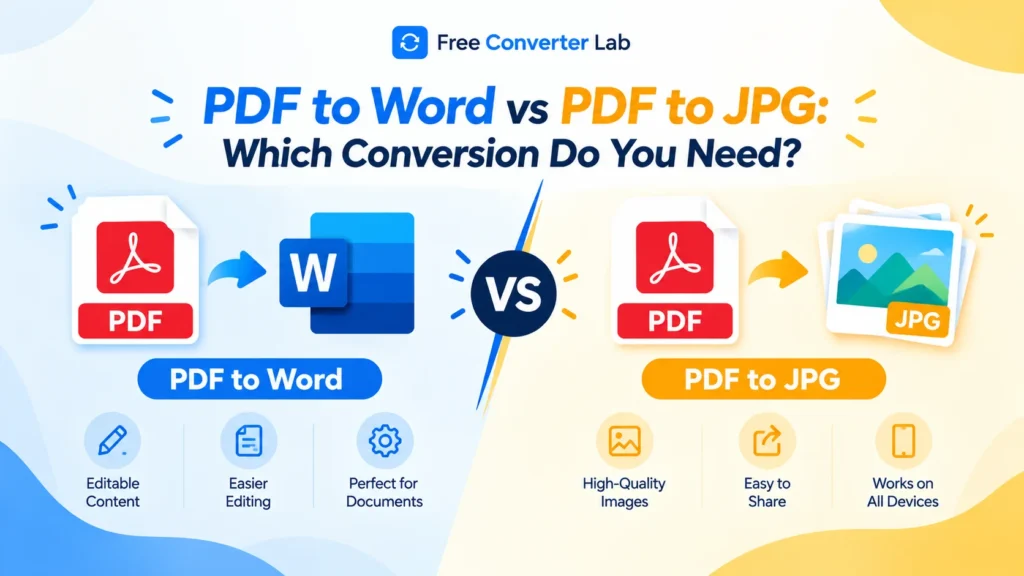
PDF files are extremely common for sharing documents, applying for jobs, keeping records and maintaining layouts. There are situations, however, when you have to modify the content within a PDF file, or utilize the pages as pictures. This is where PDF conversion tools come in handy.
However, when it comes to converting PDF files to a more readable format, you might be wondering: PDF to Word or PDF to JPG?
This will depend on what you are going to do with your file. When you want to edit text, update document information or reuse document content, PDF to Word conversion is the best solution. PDF to JPG conversion is more effective when the goal is to convert PDF pages into image files to be used in presentations, on web pages, for messaging, or for visual sharing.
Here’s a guide to PDF to Word vs. PDF to JPG and what their pros and cons are to help you decide on the best PDF conversion format that suits your requirements.
PDF to JPG : https://freeconverterlab.com/pdf-to-jpg-converter/
PDF to Word : https://freeconverterlab.com/pdf-to-word-converter/
What Is PDF to Word Conversion?
PDF to Word conversion is a process which converts a PDF file to a Microsoft Word by making it editable, typically in DOCX format. This will help you to manipulate the text and other items that are placed in a word processor.
If you would like to edit an existing document, but cannot make the changes in PDF, a PDF to Word converter can help you.
The following are the advantages of converting PDFs to Word:
- Easily edit text – correct spelling errors, update information, or rewrite paragraphs.
- Copy and past text into reports, assignments, business documents, etc. or into other files.
- Edit structured content: Edit supported tables and other structured content.
- Add/change formatting: Change fonts, headings, spacing, and page formatting.
- Save as DOCX: Save the file in the DOCX format, which can be opened by Microsoft Word or compatible word processors.
When Should You Convert PDF to Word?
Use PDF to Word conversion when necessary:
- Create or revise a resume or cover letter.
- Make adjustments to a report, task or business document.
- Edit text in PDF files.
- Copy information from a PDF file to another document.
- Amend tables, headings or paragraphs.
- Change PDF to a document that can be edited for changes.
For instance, if a company requires a PDF application, but you need to edit that form, you may find it easier to edit in Word format – provided that you can successfully convert a PDF to Word.
How to Convert PDF to Word Online
Here are some basic steps to open a PDF file and transform it into a word file that you can edit:
- Launch an authentic PDF to word converter online.
- Attach your PDF file.
- Begin converting to Word or DOCX.
- Download the converted file.
- Open it in Microsoft Word or a similar word processor.
- Check the layout and make sure it is correct.
One of the advantages of a pdf to docx converter online is that it can save you time, particularly if you need to make an edit to a document in a hurry, but don’t want to install documents on your computer.
Please note: Complex tables, columns, unusual fonts and scanned images may not translate exactly. If the text in your PDF has been scanned, you might want to use optical character recognition (OCR) to enable the text to be edited.
What Is PDF to JPG Conversion?
The PDF to JPG conversion feature converts the PDF page to the JPG image format. You’re not editing the text in the document, you are getting image files that are used to view the page image.
The PDF to JPG converter can be beneficial when you would like to share a page as an image, insert the same into a presentation or use it in an image-based workflow.
Benefits of PDF to JPG Conversion
- Easy visual sharing: Send a page as an image in a message or email.
- Ideal for presentations: Embed converted pages into slides or visual projects.
- Genuine for websites: Show selected pages of documents as pictures.
- Extensive compatibility: JPG images are readable by many phones, computers and image editing programs.
- Convert PDF pages to JPG images for individual use.
When Should You Convert PDF to JPG?
Select PDF to JPG conversion when it’s necessary:
- Share a PDF page as a picture.
- Show a page of a document within a presentation.
- Use a chart, poster, receipt or flyer as an image.
- Post a document page on a website or visual communication medium.
- Generate image files from a PDF to view or design with.
- Convert PDF pages to images for a workflow that expects to have JPG images.
For instance, you would rather send a poster as a PDF in a messaging service rather than having someone open the PDF.For instance, you might want to send a poster that you have saved as a PDF in a messaging service rather than asking someone to open the PDF.
Note that JPG is a raster image format. The converted page will not be interactable like a Word page and small text can be difficult to read if output resolution is set low.
PDF to Word vs PDF to JPG: Key Differences
The main difference is in what you will do with the converted content. Word is used for editing documents and JPG is used for storing and displaying images.
Feature | PDF to Word | PDF to JPG |
Main purpose | Edit and reuse document content | Display pages as images |
Output format | DOCX or another Word-compatible format | JPG image files |
Text editing | Usually possible | Not directly editable as text |
Layout preservation | May change during conversion | Page appearance is captured as an image |
Best for | Reports, resumes, assignments, letters | Posters, screenshots, page previews |
File handling | Opens in a word processor | Opens in an image viewer or editor |
Multiple pages | Usually combined into one document | Often produces one image per page |
Searchable text | Often available if text converts correctly | Usually not searchable without OCR |
Image editing | Requires a document editor or image tools | Can be edited in an image editor |
Common use | Revising or updating a document | Sharing or displaying a page visually |
The main difference between PDF to Word and PDF to JPG is that you can edit the content of the document in Word, but you can only convert each page into a visual image in JPG.
PDF to Word vs PDF to JPG: Which Is Better for Your Needs?
Both conversion options have their merits and demerits. The correct one depends on what you’re looking to achieve.
1. For Editing Documents: Choose PDF to Word
PDF to Word is the better choice if you need to edit words, dates, paragraphs or content that you want to reuse.
It offers you a file that you will be able to edit with Word or a comparable word processor.
Best for:
- Resume and cover letter
- Reports and proposals
- School assignments
- Business letters
- Text-heavy documents
2. For Sharing Pages as Pictures: Choose PDF to JPG
When you want to create and present a page or share it, PDF to JPG is easier.
The converted image is a representation of the page as it appears, but will not retain interactive features or editable text of the PDF.
Best for:
- Posters and flyers
- Charts and diagrams
- Document previews
- Visual presentations
- Creating individual pages as images.
3. For Job Applications: It Depends on the Instructions
Word is a good tool for changing a résumé or cover letter before sending it out. Many employers will, however, ask for a PDF of the end application.
If an application form requests for example an ID photo or scanned supporting document as a JPEG image, provide that image type.
Always adhere to the employer’s file-format directions.
4. For Scanned Documents: Check Whether You Need OCR
A scanned pdf can include pages that are images without the option to select the text.
If you do wish to edit the words, then use a PDF to Word converter that supports OCR. OCR is able to identify text from scanned pages but can be incorrect when handwriting is poor, or the page has an unusual layout or is poorly scanned.
If you only want to share the scanned pages as pictures, PDF to JPG may be sufficient.
5. For Printing: Consider the Original PDF
If your PDF appears to be correct and you just want to print it, you might not need any conversion.
PDFs may be ideal for maintaining page dimensions and layout when printing. Spacing may vary upon conversion to Word; if the resolution is not fine enough, sharpness may be lost upon conversion to JPG.
Advantages of PDF to Word Conversion
PDF to Word conversion is especially useful for those who have to edit documents on a regular basis.
Edit and Update Content
With paragraphs, names, figures and mistakes, you can update the entire document without rebuilding it.
Reuse Text and Tables
When extracting information from a PDF for a different report, it may be easier to copy and edit the content when the PDF is converted to Word.
Continue Working in a Word Processor
Once converted, you will be able to use your software’s editing functions (spell-checking, formatting, comments and track changes) as you have done before.
Potential Drawback: Formatting Changes
PDF layouts are not always 100% readable in Word. The font, table, column, page, footer and header can change position in the conversion.
To minimize issues, check the converted file thoroughly and compare with the original PDF.
Advantages of PDF to JPG Conversion
To convert PDF to JPG, it works best when you need versions of document pages that are in image format.
Share Images Easily
Many devices support JPG images, and JPG images are useful for many workflows that involve sending images and messages.
Use Pages in Visual Projects
Convert pages and insert them into presentations, image editors or other projects that will accept JPG files.
Preserve the Page’s Visual Appearance
A JPG is a snapshot of the visible information on a page at the resolution that you specified for the output. It does not save the page as an editable page, and the quality of the result image will depend on the conversion parameters.
Potential Drawback: Loss of Editing and Searchability
After converting the PDF page to JPG, the text is now embedded in the image. That text is not directly selectable or editable (unless it is a text object that can be selected or edited). If you wish to use the image to extract searchable text from it later, then OCR may be required.
How to Convert PDF to Word or JPG Online for Free
If you only use the file sometimes, then an online tool might be one to consider.
Steps for PDF to Word
- Select a PDF to Word converter that has the DOCX option.
- Upload your PDF.
- Choose Word or DOCX as the output format.
- Start the conversion.
- Download and view the “editable” document.
Steps for PDF to JPG
- Choose a PDF to JPG converter.
- Upload your PDF.
- Choose JPG for the output format.
- If you have to, select the page range or image quality.
- Convert and download images.
The file size limits, page limits, and features restrictions of free online converters might vary. Look at these before uploading a large document.
You can look at the tools on Free Converter Lab and pick an appropriate converter that is able to convert the format you require.
How to Choose the Best PDF Conversion Format
Prior to converting, ask yourself these questions:
- Should I make corrections to the text? Choose a Word.
- Do I need a picture of each page? Choose JPG.
- Is the document’s original layout important for sharing? You may wish to save the PDF.
- Is my PDF scanned? If you need to use editable text, use OCR.
- Does it need to be in a certain format, such as a website or an application? Follow its instructions.
- Is image clarity important? Choose an appropriate output resolution and check the result.
At the outset, it’s important to select the right format to avoid unnecessary conversions and time.
Tips for Better PDF Conversion Results
Whether you’re writing a term paper or a research paper, these tips can help you get a better result.
Use a Good-Quality Source PDF
Good results are obtained from a clear original file. It is impossible to be certain that conversion will provide any useful information on a badly blurred scan or the missing information.
Check the Output Before Sharing
Check fonts, spacing, tables and page breaks for Word documents. If the image is a JPG, inspect resolution, orientation, cropping and readability of the text.
Choose the Right Settings
Scanned documents are converted to editable text by using OCR. If converting to JPG, choose a resolution which ensures that text and fine details can be seen.
Keep a Copy of the Original
Save your original PDF before converting it. This is to try again with different settings or back to the original layout if necessary.
Protect Sensitive Documents
Read a file-restriction policy and check file-retention policies before uploading files to an online converter. If it’s confidential, use an offline tool that you can trust.
Final Verdict: PDF to Word vs PDF to JPG
The option to convert PDF to Word versus PDF to JPG depends on the type of content you are looking for to be editable or a visual copy of each page.
Select PDF to Word to edit text, to update information or to reuse the content of a document. If you wish to send the pages as images, use them in visual projects or show them without a PDF viewer then select PDF to JPG.
If your PDF has already been properly formatted and you just need to share or print the document, you may want to leave it in PDF format.
The best way to achieve this is to think about your purpose and adhere to any guidelines about the type of file, then preview the file to be sure before using it.
Frequently Asked Questions (FAQs)
1. What is the difference between PDF to Word and PDF to JPG?
PDF to Word is a PDF to document conversion. PDF to JPG will convert the pages to image files. Word is great for editing text; JPG is helpful for displaying and sharing pages as pictures.
2. Should I convert PDF to Word or JPG?
Use Word to edit and reuse text. Select JPG if desired to have the PDF pages as image files. You may not need to convert the document if you are only going to share the original.
3. Is PDF to Word better than PDF to JPG for editing?
Yes. PDF to Word is better suited for editing text, paragraphs, and supported tables. The text is not directly visible in JPG files; use of other applications like OCR is required.
4. When should I convert PDF to JPG instead of Word?
Turn PDF into a JPG when you would like to share a page as a picture, add it to a presentation, show it on a website or include it in a picture editing workflow.
5. Can I convert PDF to Word online for free?
Yes. There are many online tools available that can convert PDFs to Word for free, but they might have limitations in terms of file size, number of pages and features. Check the document for any formatting changes.
6. Can I convert PDF pages to JPG images online?
Yes. You can use a PDF to JPG converter software to convert PDF pages into individual JPG images. Alterations to image quality and/or choice of pages may be possible depending on the tool used.
7. Which format is better for scanned PDFs: Word or JPG?
It very much depends on what your objective is. If you need to make edits to the recognized text, use Word with OCR. If you just need to keep visual copies of the scanned pages, use JPG.
8. Does converting PDF to Word preserve the original formatting?
It can retain a lot of the model, but there are no guarantees of exact results. Tables, columns, images, fonts and page breaks can be modified. Be sure to check the converted file.
9. Does converting PDF to JPG reduce image quality?
It can, depending on the output resolution and compression settings. Select an appropriate resolution and examine the converted images; if they feature small text or fine detail, this is important.
10. Which is the best PDF conversion format for sharing documents?
Depends on the use of the recipient. PDF is generally best if you want to share a document with the layout you created, Word is great if you want the person to be able to edit your document, and JPG when you want to share an individual page as an image.
