
How to Make a PDF Smaller for Email Attachments
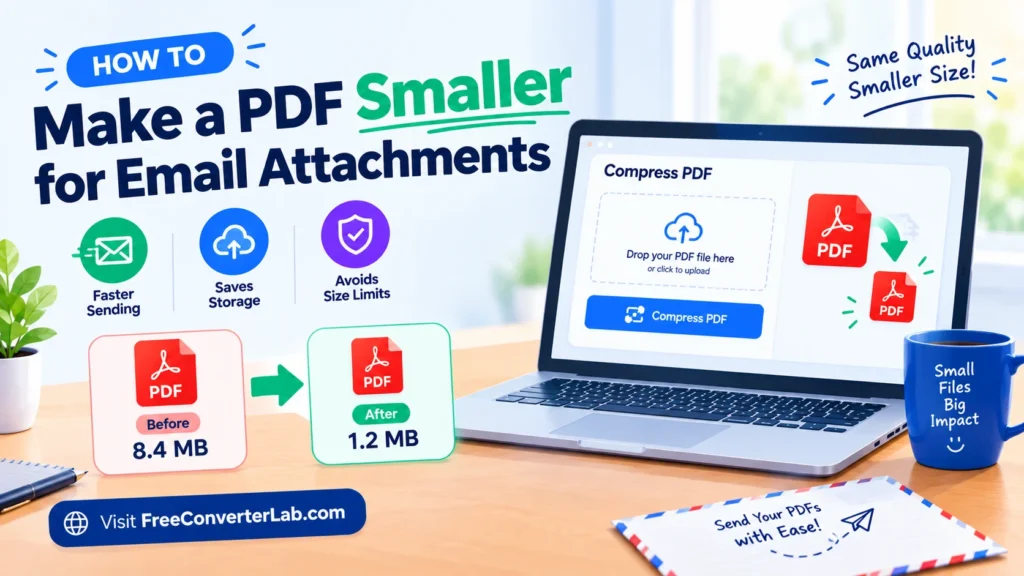
Ever attempted to send a PDF file via email, and find it’s too big? When sending a high-resolution image, scanned page, graph, and detailed document, a large PDF file can easily be sent in an email that exceeds the attachment size limit.
Fortunately, you don’t have to re-create your document or take out valuable information to fix this issue. To make a PDF file smaller for emailing, you can compress the images, optimize the document, or use a PDF compression tool that is online.
This tutorial will help you compress PDF files for email, shrink PDF file size without compromising readability, conform to the common PDF attachment size limits in Gmail and Outlook, and upload larger documents more easily.
PDF Compressor : https://freeconverterlab.com/pdf-compressor/
Why Make a PDF Smaller for Email?
Shrinking a PDF makes it more manageable to send, upload, download and share. A smaller file size will also be easier for recipients who may have limited storage space or slower internet connections.
Some of the common reasons for reducing PDF file size.
1. Meet Email Attachment Limits
There’s a limit on the size of attachments in email services. If the PDF is too large, it may not be possible to send the message directly.
Compressing your document can help to keep your PDF file smaller when attaching it to an email or even help you avoid getting the PDF file uploaded.
2. Send Documents Faster
Large files typically take longer to upload and download. When it comes to sharing reports, invoices, resumes, assignments and business documents, a smaller PDF makes it easier.
3. Save Storage Space
If you want to save your large PDF files on your computer, phone, or cloud storage account, you can compress them.
4. Ensure documents are easily shared
Sending smaller files via email, messaging apps, online forms and document sharing sites can be easier.
5. Preserve Important Information
Appropriate compression levels can minimize wasted file data without compromising text and images to the point where they are unreadable or unusable.
The ultimate aim is to optimize PDF for e-mail without compromising readability.
How to Make a PDF Smaller for Email Attachments
A PDF compressor is one of the most convenient methods to lower your PDF. There are a number of online services to compress a file without downloading desktop software.
To create a PDF that is small enough to send by email, use these steps:
Step 1: Can check the Current PDF File Size
Locate your PDF file on your computer or mobile device and inspect the size of the PDF.
If your document is 18 MB in size and your email service lets you attach up to 25 MB, then it will probably fit into the 25 MB threshold. If it’s 35 MB, however, it might have to become compressed or a file-sharing link might be required.
Be aware that some email providers count the encoding of your message and other attachments to the message size, so it’s better to leave some free space.
Step 2: Go to an Online PDF Compressor
Select a PDF compression program that’s compatible with your document type and file size.
Visit Free Converter Lab and browse for the available PDF compression tool.
You can use a browser-based PDF compression online tool to compress PDF files without installing any software. Check the tool’s supported formats, upload limits, and privacy policy before uploading your document.
Step 3: Upload Your PDF File
Choose to compress the PDF file you wish to use.
If the file is confidential (including financial, identity, or employment information), a trusted offline tool should be used rather than uploaded to an online tool.
Step 4: Choose a Compression Level
Some PDF compressors offer various degrees of compression (e.g., low compression, medium compression and high compression).
- Low compression: Small changes are made, and it’s usually a good quality production.
- Medium compression: Good compromise between compression size and image quality.
- High compression: Can create a much smaller file, but may result in lower clarity of the image.
The choices will be different on each tool. Use a moderate setting when available, if you are compressing a resume, assignment or document with small text.
Step 5: Compress and Download PDF
Begin compression and wait for the tool to be completed. When ready, download the compressed document.
To know how much space you saved, compare the new file size with the original.
Step 6: Review the Compressed File
Unzip the pdf file before sending it. Ensure that the text is easy to read, images are not too blurry, the pages are all intact, and tables or diagrams are not hard to view.
If this is still too blurry, use a lower compression.
This is a simple method of compressing a PDF for email without losing out on the essential quality/size ratio.
How to Compress PDF Files Online for Free
There is a free PDF compressor available online if you don’t wish to install software on your computer.
In general, it is a straightforward process:
- Launch a PDF compressor in your browser.
- Upload PDF file.
- Select a suitable compression level, if available.
- Start compressing the document.
- Click on the smaller PDF to download it.
- Check the results before sending by email.
There are some online PDF compressing tools that don’t require an account to use. Some may have file size restrictions, limits on usage, or other restrictions.
When selecting a tool, be sure to verify that it is compatible with your file size, and that its privacy policies are suitable for your needs.
What Should You Look for in a PDF Compressor?
Good PDF file size reducer will provide you with:
- Easy upload/downloading.
- Tools for compression of different types of documents.
- Provide easy-to-find and clear information on file size restrictions.
- Producing output that is legible and has few unwanted losses in quality.
- Clear data privacy and storage policies.
- Compatibility with your computer, tablet or smartphone.
If you’re sending pdf files frequently, don’t compress your files before you send and keep an original copy. This is a great way to begin again when your compressed version is not of a high standard.
How to Reduce PDF File Size Without Losing Quality
PDFs can be made smaller without compromising on visibility. The results, however, will vary based on the way the PDF was made and the content of the PDF.
The compressed size may differ from a document containing only text to one containing photographs or scanned pages.
There are a number of ways to reduce the size of PDF files without compromising the quality.
1. Compress Images Inside the PDF
Images can be a major component of the PDF file size.
If there are large photographs or high resolution graphics on your PDF, you may need to decrease the image resolution or to apply a suitable image compression that will make the PDF much smaller.
If the document is to be viewed on a typical display, a very high resolution may not be needed. But if you want to create the most professional-looking documents, you might need higher quality images.
2. Reduce the Resolution of Scanned Pages
Scanned documents can generate large PDFs as each page can be saved as an image.
When appropriate, use a more reasonable resolution for rescanning very high-resolution pages made by your scanner. If dealing with a normal text-based document, a medium resolution might be helpful in terms of clarity and file size.
Don’t make it so small that it is difficult to read.
3. Remove Unnecessary Content
Certain PDFs have duplicate pages, unused images, embedded attachments or any other unnecessary content.
If they do not need to be included, things can be removed from the document to reduce its size. Check the resulting file to make sure that any important information hasn’t vanished.
4. Optimize Fonts and Embedded Resources
To maintain consistency across devices, PDFs might contain embedded fonts and other resources. Unused font data or unnecessary resources can be eliminated by some optimization tools.
Avoid removing resources at random as this could impact on the display of the document on another device.
5. Avoid Repeated Conversions
You may end up with a larger PDF or poorer visual quality if you repeatedly convert a PDF to images and then back to a PDF again.
When possible, compress the original PDF, not each page into an image.
6. Choose the Right Compression Level
The optimum compression doesn’t always yield the best results.
To reduce the size of a PDF without compromising quality, begin at moderate compression and test the results against the original. Only use higher compression when the smaller version still doesn’t fit and the quality is acceptable.
There is no approach to ensure that all PDFs are absolutely unaffected in quality, particularly if compressing images heavily.
How to Make a PDF Smaller for Gmail and Outlook
Gmail and Outlook also set attachment limits, and it might be necessary to compress a PDF before sending it.
These limits are dependent on the account type, organization, and email service configuration. Check the current limit for your account before preparing the document.
How to Reduce PDF File Size for Gmail
The typical size of attachments you can send from Gmail is 25 MB per email. If all attachments exceed this limit, Gmail will share the files with Google Drive.
To send a smaller PDF using Gmail:
- See current size of the PDF.
- If it is too large to attach, compress the document.
- Download and read the zipped pdf.
- Attach it to your Gmail message.
- If the total size of the email message is within the permitted size, send the email message.
If it is still too big you could share it with the right access on Google Drive.
How to Reduce PDF Size for Outlook Attachments
The email capacity of your Outlook attachments depends on how you use Outlook, either through Outlook.com or a Microsoft 365 account or through an organization-managed Exchange service. The limit could also be influenced by network and administrator settings.
To compress PDF for email in Outlook:
- Verify the limit of attachments in your account.
- Use an appropriate tool to compress the PDF.
- Check the new file size and confirm it’s within the limit.
- Attach a compacted file.
- If it remains too large, use an approved cloud sharing platform, like OneDrive.
When sharing files for work or school, please adhere to your organization’s file sharing and privacy guidelines.
Other Ways to Send Large PDF Files by Email
Sometimes it is not sufficient to compress alone. If you must send a large PDF, here are some options to consider:
1. Use a Cloud Storage Link
Send the PDF to a cloud storage platform and provide the link to the person.
This is easier to do than to attach a very large file. But, peer-to-peer sharing permissions can be checked to ensure that the recipient can read the document without revealing it to others.
2. Split the PDF Into Smaller Files
You can break down a larger PDF into smaller parts if the recipient accepts more than one attachment.
A 60 page report may be split into a number of files, for instance. Be sure to label each portion and to have the recipient aware of the order.
3. Remove Unnecessary Pages
Remove any pages that are not needed from the document before compressing. Use only when you are certain that the pages are not needed by the recipient.
4. Recreate an Oversized Scan
Creating a new PDF from previously made scans with different settings can significantly decrease the size of the PDF if the scan was taken unnecessarily large.
Ensure that the new scans will retain all critical information and be legible.
Common PDF Compression Problems and Solutions
Even when you use a PDF compressor online, you may encounter issues. Some of the most prevalent issues and solutions are presented here.
Problem 1: The PDF is still too big
Why it happens: It may be that there are lots of high resolution images or scanned pages in the file, or the compression tool may compress the file only superficially.
Solve: Experiment with another compression, optimize the images, or split the PDF if the recipient is willing to receive multiple PDFs.
Problem 2: Text Becomes Blurry
Why it occurs: There can be strong image compression or low resolution scanning, making the text more difficult to read, especially if stored in image format.
Solution: Reduce the compression level or make a new scan at an appropriate resolution. If possible, preserve PDFs in text format.
Problem 3: Images Lose Detail
Why it happens: Some compression methods: reduce image quality for space saving.
Solution: Select a less aggressive setting and look at the compressed copy and the original version before sending.
Problem 4: The Online Tool Rejects the File
Why it happens: The file might be larger than the max upload size, it may be corrupted, or it may have some elements for which this tool does not support.
Solution: Check the service’s limits, open the original PDF to confirm that it works, or try a compatible offline application.
Problem 5: The Compressed File Is Not Much Smaller
Why it occurs: The PDF might already be optimized, or it may be pretty much all text that has limited compression opportunities.
Solution: See if the file has large graphics, attachments or content that is not needed. If the PDF file is already efficient, then the cloud sharing link might be more suitable.
Final Thoughts
Shrinking PDFs for email is a time-saving solution to make sharing documents easier. PDF compression is great for saving attachments like resumes, school projects, invoices, reports and scanned documents, as well as limiting file size and making them easier to share.
When compressing, always select the right compression ratio, use it properly if necessary, and never send a compressed file before checking it. If the PDF is still too big, try to work with a cloud sharing link or break up the document into smaller sections.
An effective online PDF Compressor will lead you to reduce PDF file size and you will not need to install any other software tools. When selecting an online tool, only remember to pay attention to file limits, readability, and protecting information.
Frequently Asked Questions About PDF Compression
1. How do I make a PDF smaller for email attachments?
If it is a PDF file, compress it using a PDF compression tool. Send the PDF, select the appropriate compression level, download and inspect the PDF before sending it in an email.
2. How can I compress a PDF file for email for free?
A free online pdf compressor is available. Upload, compress, download and then upload your document. Find out if there are file-size restrictions or if you need to register to use the service.
3. How do I reduce PDF file size for Gmail?
Make the PDF as small as you can in the file to attach to the Gmail account. Gmail allows attachments of up to 25MB per email, but if it’s more, it might provide Google Drive sharing instead.
4. How do I reduce PDF size for Outlook attachments?
Look at the attachment limit of your Outlook account and then compress the PDF using a proper tool. If the file is still too big, you should look at using OneDrive or another accepted file sharing service.
5. Can I make a PDF smaller without losing quality?
Many times, small file sizes can be achieved with suitable visual quality. But aggressive compression might not capture the details of the images or clarity of the text, particularly in scanned documents. Always check the outcome of the calculation.
6. What is the best way to reduce PDF file size for email?
Use a good PDF compressor and compress moderately. If the file is still too big, resize images, delete content (where possible) or provide a link to a cloud-based file.
7. Does compressing a PDF affect text readability?
It can, especially if the PDF actually has some scanned pages or the software applies heavy compression on the images. Select appropriate settings and ensure that small text, tables and diagrams are legible.
8. Can I compress a large PDF online without installing software?
Yes. There are also lots of PDF compression apps that can be used from the web that will allow you to upload the file and lower it without the need to download it onto your desktop. Always review the privacy policy and upload limits of the tool before using it.
9. Why is my PDF still large after compression?
The file might have high resolution images, scanned pages or optimized content. Consider changing the compression setting and/or optimizing images, removing unnecessary material, or sharing the file via cloud storage.
10. Is it safe to compress a PDF online?
The services and their data handling practices determine safety. Select a reputable provider, check its privacy and file deletion policy, and ensure that you don’t upload confidential files to providers that you don’t know. If you have sensitive files, you should think about using software that compresses files offline.
