
How to Combine PDF Files for Job Applications and Assignments
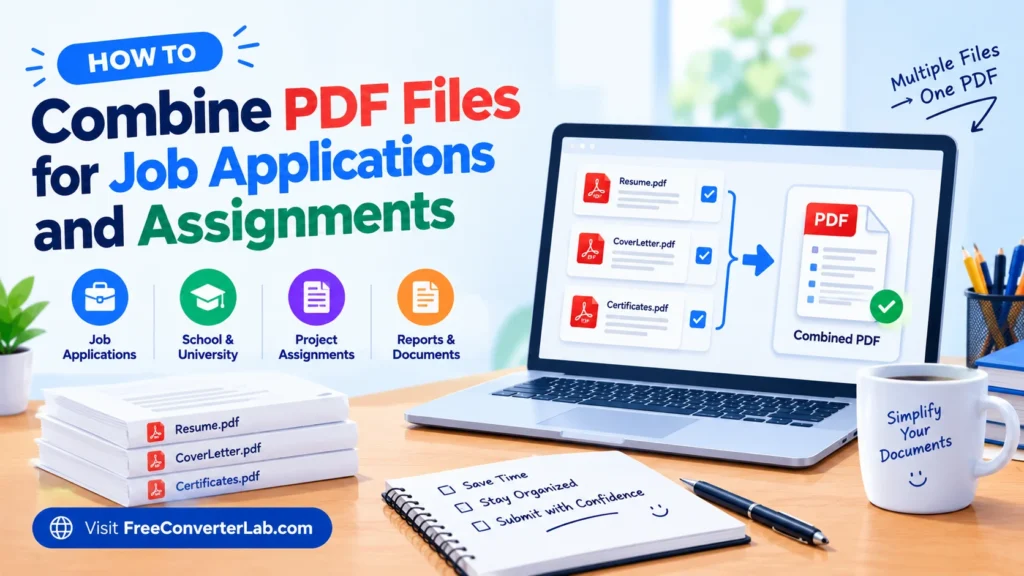
You may have to give multiple documents when applying for a job or when you are going to school and you have an assignment to hand in. This could be a resume, cover letter, educational certificates, scanned documents, and/or assignment pages. Uploading files one by one may be inconvenient, particularly if there’s a limit of 1 file on the website.
The simplest way to do this is to merge PDF documents into a single cohesive file. By combining PDF files, you can easily submit, share, store and review critical information without having to deal with a large number of attachments.
You’ll learn how to merge PDF documents online for free, how to merge a cover letter with a resume to one PDF, how to organize assignment documents, and avoid common PDF formatting issues. You will also learn how to combine PDF without software.
Combine PDF : https://freeconverterlab.com/merge-pdf/
Why Combine PDF Files for Job Applications and Assignments?
You can merge several PDF documents into a single one to group related documents. A single document can be used to send several attachments where required.
Below are a few reasons why you’d want to combine PDF files.
1. Simplify Job Applications
A resume, cover letter, certificates of education, experience letters or other documentation may be requested. If the application instructions allow for one consolidated file, then these documents could be combined into one PDF.
That simplifies the ability of the recruiters to look through your info in the correct order.
2. Organize School and College Assignments
Students are frequently asked to include a cover page, text answers, diagrams, handwritten pages (scanned), references and supporting materials in one submission.
Assignments that are combined from PDF files can have all the work in one document and ensure that the pages are in the desired order.
3. We will minimize the number of attachments
Merging documents decreases the amount of individual files to upload or send by email. It can also help you keep documents organized while collaborating with teachers, employers, or fellow employees.
Keep in mind that combining PDFs doesn’t necessarily make them smaller. In case the combined file is too large to upload, it might be necessary to compress it separately.
4. Store Records in Proper Sequence
A combined PDF enables you to arrange documents in a sensible order. For instance, a cover letter, resume and applicable certificates may be part of a job application.
The assignment title page can precede the main body of the text, images, and references.
5. Make sharing more convenient
One PDF can be attached to an e-mail, placed in a folder, or shared via a document portal. It also facilitates the recipients to locate related information in one place.
Use this guide to learn how to combine PDF files into one document.
It isn’t necessary to have advanced technical skills to combine several PDF files. A PDF Combiner online tool is able to merge PDF files in merely a few simple steps.
Here’s how to merge PDF documents
Step 1: Prepare Your PDF Files
Gather all the PDFs that you want to merge. If need be, give them a clear name, e.g.,:
- 01-Cover-Letter.pdf
- 02-Resume.pdf
- 03-Educational-Certificates.pdf
- 04-Experience-Letters.pdf
Unambiguous names assist with knowing what each document is and in the sequence in which you want to combine them.
Step 2: Open an Online PDF Merger
Pick a trusted PDF merger internet. For instance, check Free Converter Lab and search for the PDF merging tool that is available.
You can use a browser-based PDF merger to merge PDF files without downloading desktop software. Look at the supported file types and upload limits of the tool before you begin.
Step 3: Upload Multiple PDF Files
Choose the PDF files that you wish to merge from your computer or device. Some tools will also allow you to drag and drop files into them.
Be sure to have all necessary files selected. A document may be missing if not.
Step 4: Arrange the Files in the Correct Order
Check the uploaded documents and if there is an option to reorder the document in the tool, place them in the desired order.
For a job application, you could order the cover letter first and your resume and supporting materials second. When asked to do an assignment, put title page, questions, answers and references in order given by teacher.
Step 5: Merge the PDF Documents
Select “merge” or “combine” and allow the tool to do its job.
The tool should generate a single PDF with the pages of the selected documents. Processing time is variable based on volume of files, file size and the tool used.
Step 6: Download and Review the Final PDF
Download the combined file and open it to see if it works out properly.
Check that:
- All necessary pages are provided.
- The pages are in the proper order.
- Works well for reading text and images.
- Tables, diagrams, and scanned pages are correct.
- No pages missing, duplicated, or pages unexpectedly turned over.
These checks serve as a way to ensure that your “combined” PDF is ready for submission.
How to Merge a Resume, Cover Letter, and Certificates Into One PDF
If you’re in the process of creating a job application, you might have to merge a number of documents into one. This depends on the requirements of the employer but for most applications a sequence like this is suitable.
The recommended order for the Job Application documents is as follows:
- A cover letter should introduce you and your letter and tell the employer why you are seeking the job.
- Resume or CV: List all your work experience, education, skills and anything else relevant and significant.
- Educational certificates: Include the certificates or transcripts that the employer requested.
- Experience letters: As needed, have relevant employment verification letters to include.
- Other supporting documents: Add portfolios, licenses, references or other documents requested.
This sequence results in a logical document with a clear structure.
Tips for Combining Job Application PDFs
- Adhere to the employer’s guidelines for the submission of the file.
- Use a professional file name (Application-YourName.pdf).
- Ensure that your resume and cover letter can be read.
- Remove duplicate or unnecessary pages.
- Determine if the employer has specific document requirements to upload separately.
- Check the final size of the file before sending it.
Please note: Many job sites ask for a cover letter and CV in separate documents. If so, then only combine if approved by the employer.
How to Combine PDF Assignments for School or College
Students often use a variety of documents such as word exports, handwritten documents, diagrams and reference material. It can be easier to submit assignments if they are a single PDF.
Recommended Order for Assignment Documents
A typical assignment might be set up like this:
- Title or cover page
- The introduction or questions for assignments.
- The answers to the main questions or the written content.
- Graph, picture or explanatory drawing.
- References or bibliography
- Appendices, if required
If your institution has instructions to follow a different order, do so.
How to Combine Scanned Documents Into One PDF
If answers are handwritten or scanned, save or export each scan as a PDF before inserting it into your assignment. Then upload your PDFs to your selected merger.
Before you combine the pages, be sure the pages are well-scanned, properly cropped, and legible.
If you saved these scans as images (JPG or PNG), you might have to convert these images to PDF before merging them into other PDF files.
Tips for Students
- Number all pages as directed in the assignment.
- Maintain consistency of headings and section titles.
- Ensure that answers are ‘clean’ in handwriting.
- Write all necessary pages and references.
- Check the final PDF on a computer or phone before uploading.
- Check file size limit and format allowed for a submission portal.
The following steps might help you merge school assignments without losing important material content.
Tips for Combining PDF Files in the Correct Order
When it comes to job application, academic work, reports and official documents, page order is of particular significance. If the file is merged properly, it should lead the reader through the file in a step-by-step fashion without any confusion.
Follow these guidelines to make PDF organization easier.
Plan the Sequence Before Uploading
Choose an order of documents: first or last. A cover letter is usually the first to be written before a resume attachment in a job application PDF, for instance.
Use Descriptive Filenames
You can number filenames to organize files prior to uploading. For instance ‘01-Title-Page.pdf’ and ‘02-Assignment.pdf’ can be more manageable than ‘scan1.pdf’ and ‘document-final-new.pdf’.
Check Page Orientation
Some PDFs have pages that are landscape and others are portrait. Check whether tables, charts and diagrams are easy to read when merged.
Review Page Numbers
For multiple documents merged together, you might find that the pages are numbered from the beginning in each of the original documents. If the pages need to be numbered on one side, update the page numbers before the merging or use an appropriate PDF editor after the merge.
Follow Submission Requirements
The most effective way to merge PDFs for submission is to adhere to the recipient’s directions. Certain employers, schools, or government sites have a specific order, file name or size, or document type.
Common PDF Merging Problems and How to Fix Them
Creating PDFs is typically a very easy process, but there are some issues that you might need to deal with when you perform a PDF merge. Some typical problems and remedies are:
1. The Merged PDF Is Too Large
When merging PDFs, especially those with high-resolution images or scanned pages, it can result in a large file.
Solution: Compress the PDF file size after merging them using a PDF compressor. Check the compressed file to see if text and images are legible.
2. Pages Appear in the Wrong Order
Some merging tools will merge files in the order of the list, not the order you expected to merge them.
Solution: If the tool can reorder files, do so by hand before merging. If not, create the files in the right order and upload them as such.
3. Some Pages Are Rotated
Scanned documents or files from mobile devices may have a different page size orientation.
Solution: Rotate the effected pages before and after merging them in PDF Editor. Open the last PDF to make sure all pages are standing straight.
4. A PDF File Cannot Be Uploaded
The file might be damaged, password protected, unsupported or exceed the maximum file size allowed for uploads.
Solution: Test to see if the file opens properly, verify the format, and unlock it (only if you are allowed to do so). If that doesn’t work, use a PDF compatible application.
5. Text or Images Look Different
Typically, PDF merging preserves the original pages but issues can arise if the PDF is corrupted or the tool doesn’t handle all PDF features properly.
Solution: Use another trustworthy merger and then compare the outcome to the original files. Check all pages of important papers before handing them in.
6. The Final PDF Contains Duplicate Pages
Documents can be uploaded multiple times, or parts of the same paper can be uploaded more than once.
Solution: Check the list of files for repetition prior to merge and check the merged PDF for repeated pages.
How to Merge PDF Files Online for Free
A free pdf merge online is a handy alternative to merge pdf files without any need of software installation.
Here are some features to consider when selecting a PDF combiner:
- Easy uploading: The tool should be user friendly with respect to picking numerous PDF records.
- Page ordering: Search for a way to order the documents before they merge.
- Readable output: The output is sufficient to preserve the original pages as much as possible into a PDF.
- Check out what the maximum number of file is and what is the file size allowed.
- Privacy data: Examine the service’s privacy policies when uploading items, such as resumes or certificates or academic documents.
- No unnecessary steps: A simple interface can help make merging quicker and easier.
How to merge PDF files online free: Open an appropriate tool, upload PDF files, arrange them, merge, and download the merged file.
If you would like to merge PDF files without signing up, see if the service you are using allows you to merge PDF without registration. The requirements differ, depending on the tool.
Can You Combine PDF Files Without Losing Quality?
In most cases, yes. When you merge PDF files, they’re going to be merged without you having to convert them to images or lower the resolution. The results, though, will vary based on the merging tool being used and the contents of the original files.
When merging PDFs without compromising the quality:
- Use trusted PDF merger.
- Don’t convert to image formats unless necessary.
- Save backups of PDFs.
- Check merged text, images and scanned pages.
- Don’t compress the last file unless you really need to.
Before you upload sensitive documents, such as certificates, documents of identity, employment or other records, check the service’s privacy and file-deletion policies.
Final Thoughts
You can make a wide range of documents easier to deal with when you know how to merge PDF files. You can combine several PDFs into one file that contains attachments arranged together in an easy-to-review and easy-to-share format.
When applying for a job, organize a cover letter, job resume and supporting certificates in the order requested by the employer. The assignments will contain the title page, main content, diagrams, and references in the proper sequence.
The free online pdf merger can help you to merge multiple pdf files together without software installation. Before uploading or sending the document, always check the document for the last time, confirm its size, and adhere to the instructions provided by the recipient.
Frequently Asked Questions About Combining PDF Files
1. How do I combine PDF files into one document?
Use an online PDF merger, upload PDF files you need to merge, drag them in the proper order and click Merge. Download the PDF that comes up, and ensure that all pages are in it.
2. How can I merge multiple PDF files online for free?
You can use an online PDF merger to merge PDFs for free. Upload your documents, (if supported) arrange them, combine files into one document, and download the combined file. Look for the file-size and usage constraints of the tool.
3. How do I merge a resume and cover letter into one PDF?
Put the cover letter in front of the resume if it’s in that order as it is in the directions for the application, then merge the resume and cover letter into a PDF. Look at and use a professional file name before turning it in.
4. Can I combine PDF files for job applications?
Yes. When the employer allows a single file to be submitted, it is possible to merge a resume, cover letter, certificates and other supporting materials into a single pdf. Always use the employer’s specified format for files and order of documents.
5. How do I combine PDF files for assignments?
If there are any images or documents that need to be converted to PDF, do so first and upload all the PDFs to a merger. Put the answers, diagrams and references together in one file, in the order required by your assignment guidelines, with the title page as the first page.
6. Can I merge PDF files without installing software?
Yes. There are lots of PDF merge software that allows you to merge PDF files online without the need to install an application on the desktop computer. The availability and the number of files will vary by service.
7. Will merging PDF files reduce their quality?
There is a tendency to keep the quality of the original pages and their quality when merging PDFs. Some tools will, however, modify or work in other ways with some content. Check the combined file for clear text, images and scanned pages.
8. Can I combine scanned documents into one PDF?
Yes. Upload and merge scanned documents if they are already PDFs. If they are images, convert them to PDF. Verify page orientation and legibility prior to submitting final document.
9. What should I do if my merged PDF is too large?
Before merging: compress the PDF; or resize large images before merging. Ensure that the final document is both readable and will fit the recipient’s file-size needs.
10. Is it safe to merge PDF files online?
This will rely on the service and documents uploaded. Use a trusted tool, check the privacy and deletion terms, and only upload non-sensitive materials to services that don’t guarantee privacy and deletion. If you have very confidential documents, you can use an offline PDF tool.
