
How to Batch Convert Multiple Images at Once
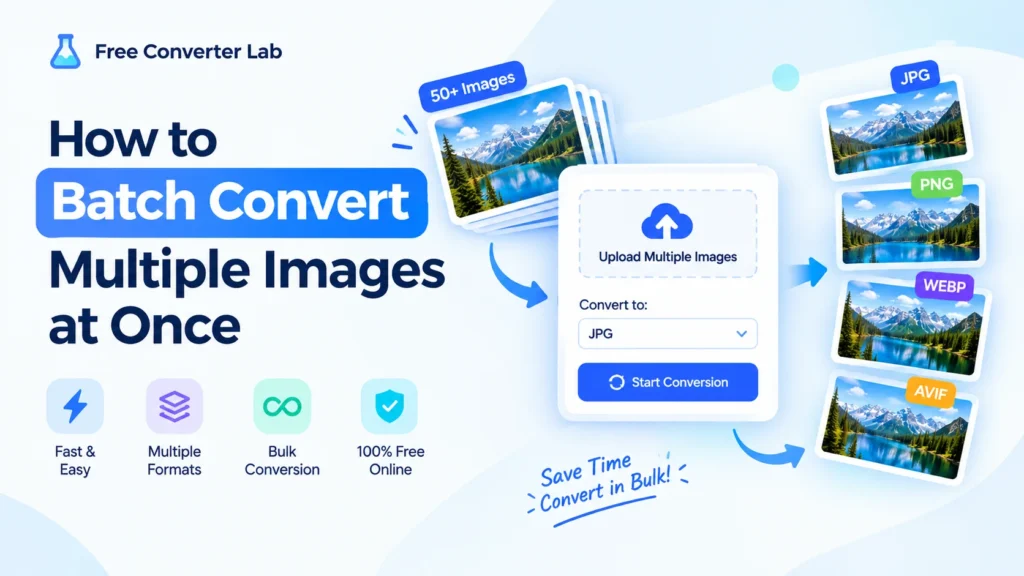
If you have a lot of photos you want to convert, it can be tedious trying to do one at a time. When you need to prepare images for websites, organize a collection of photos, convert design files, or optimize files for speed, you don’t want to spend the time doing this in person.
The best option is to use a batch image converter to convert images at the same time.
You can upload several images, select an output format and process them all together – without having to repeat the same steps for each image. In this tutorial, we will cover how to batch convert images, the benefits of batch conversion, and how to batch convert images without any complicated software.
What Is Batch Image Conversion?
batch image conversion: A process of converting several image files at once from one image file format to another image file format.
If you want to convert 50 JPG files to PNG, you can do that by using a bulk image converter instead of doing this one by one.
Common Batch conversion tasks are:
It’s particularly helpful for handling massive image libraries and website resources.
The reason for Batch Convert Images?
The most obvious benefit of batch conversion is that it saves time.
Now suppose you have 100 photos of products that require you to convert them from PNG to WebP. Manually converting each file could be time consuming. Online batch image converter allows you to process several files at once.
Some of the primary benefits are:
1. Save Time
Converting each image manually involves repeatedly selecting the files, picking the desired output format, initiating the conversion process and downloading the output.
You can use a batch workflow to perform all of these steps at once and convert multiple images.
2. Process Many Files Together
If you have a lot of files, 20, 30, 40, even hundreds, that must be converted in the same way, a bulk image converter would be helpful.
You can upload the collection of images and convert them in bulk to avoid the repetition of this process for each image.
3. Maintain a Consistent Format
Images are frequently needed in order to be consistent in format for websites, applications, design projects, and electronic stores.
For instance, you can convert all images to WebP on your website. Batch conversion helps ensure consistency of format in a collection.
4. Reduce Repetitive Work
When you’re working with images often, it’s one of the most time-consuming steps in your workflow.
A free batch image converter can make it easier to do, and allow more time to be spent on the project itself.
5. No Complicated Software Required
It is more convenient to use an online batch image converter than to download and install a dedicated image converter software.
Many common conversion needs can be accommodated with a browser-based tool.
How to Batch Convert Images
The exact interface may differ from tool to tool, but the general procedure is very simple.
Step 1: Select Your Images
First, choose the images that you want to convert.
You can choose from JPG, PNG, WebP, AVIF images or others.
When you have a large collection, choose ALL the files that you wish to convert.
Step 2: Upload Multiple Files
Upload the files you want to convert to a batch image converter online.
Ideally, a good tool should be easy to use to add more than one image at once, rather than having to process each image separately.
Step 3: Choose the Output Format
Select the format you want to use for the converted files.
For example:
- Convert JPG to PNG
- Convert PNG to JPG
- Convert JPG to WebP
- Convert PNG to WebP
- Convert WebP to JPG
- Convert photos to AVIF file format.
The output format you select will be based on the use you plan to put the images to.
Step 4: Start Batch Conversion
When you have decided on your files and output format, begin the conversion.
The tool analyzes the images and generates the converted images.
Step 5: Download Your Converted Images
Once the conversions are finished, download the converted files.
Some tools offer individual downloads, others offer a package download of a number of converted images.
This is particularly useful for bulk image conversion, rather than converting one image at a time.
Convert Multiple Images Online
A browser based converter is one of the easiest methods to change a number of pictures online.
One benefit of an online workflow is in the absence of the need to install any new software on the computer.
The following browser-based tool will assist you to:
- Use online batch image conversion service to convert images.
- Convert several JPEG files.Batch convert JPG images.
- Process multiple PNG file(s) at once.
- Convert multiple WebP files—batch converter and packer.
- Convert multiple AVIF files into a single file.
- Batch converts a series of photos.
- Bulk Online Conversion of images.
- Read in images from various projects
An online batch image converter may be a useful option for occasional image conversions, as it bypasses the need for a desktop application.
Common Batch Image Conversion Examples
There are various types of images that are required for different projects. Here are some of the common bulk image conversion examples:
Batch Convert JPG to PNG
You can batch convert JPG to PNG instead of converting each photo one by one for making the PNG transparent and for certain design needs.
This is helpful when using PNG might be preferred, such as when using graphics, illustrations, screenshots etc.
Convert PNG to JPG in a batch mode
If you aren’t needing transparency and you go for a widely-supported image type, you might consider batch converting PNG to JPG.
This could be beneficial for photos and huge amounts of pictures.
Batch Convert JPG to WebP
WebP is being used for modern websites. You can batch convert JPG to WebP if you have a bunch of JPG images, which can then be used for the web.
For example, batch processing allows you to process the collection of images in one go instead of converting each separately.
Batch Convert PNG to WebP
Also WebP can be used when dealing with PNG images.
If your site has numerous PNG resources, then batch convert PNG to WebP might assist you to optimize your image preparation procedure.
Batch Convert WebP to JPG
In some cases, you might want to stick to a regular image type for use with a specific app or workflow.
If you’re in that situation, you can batch convert WebP to JPG rather than processing them individually.
How to Convert Multiple Images to JPG
When your project calls for JPG, you don’t have to perform a conversion for each image.
To convert multiple images to JPG:
- Choose the pictures you wish to convert.
- Upload them to a bulk photo converter.
- Choose “JPG” as the output format.
- Start the conversion.
- Download the converted images.
This technique can be helpful to convert PNG, WebP or other formats that are supported to JPG.
How to Convert Multiple Images to PNG
PNG is preferred for lossless compression, such as graphics, screenshots, illustrations, and images.
If you want to convert several images to PNG, upload your desired files to a batch converter, select PNG as the output format and process the images.
It is much easier to do this with a large collection than to convert each file individually.
How to Convert Multiple Images to WebP
WebP is a widely used format for web pages as it can deliver a decent compromise between size and quality.
To convert many images to WebP format, select your images, upload them to a proper image converter, select WebP and process the files simultaneously.
This process is especially handy when creating many pictures for a site.
How to Convert Multiple Images to AVIF
Another new image format that aims to achieve both high quality and efficient image compression is AVIF.
If you have multiple images that you want to convert to AVIF, it might be better to batch convert them.
For very modern web projects, with numerous images to prepare, a batch workflow can save a lot of time.
How to Convert Multiple Photos at Once
Owning a photography business, a designer, a blogger, or an e-commerce seller or website owner may require them to process many photos.
You can use a bulk photo converter to convert multiple photos at a time, rather than opening each photo one by one.
Suppose you have, for instance:
- 50 vacation photos
- 100 product images
- 75 blog images
- 200 website assets
It can be tedious to process each one of these files separately. Batch processing can be used to process the same conversion task many times more efficiently.
How to Convert Images in Bulk Online
If you don’t want to install software, you can convert images in bulk online using a browser-based service.
The typical online workflow is like this:
Select → Upload → Choose Format → Convert → Download
Installing software isn’t necessary and bulk converting images this simple process makes it simpler.
A web-based solution can also minimize the need to become proficient in complex image editing tools for occasional users.
Batch Convert Images for Free
For simple picture conversions, you may not require costly desktop software.
If you are looking to convert several images without any cost of a special conversion program, then you can find a free batch image converter that will do the job.
When choosing a free tool, look for useful features such as:
- Multiple file uploads
- The following are also supported by the image formats:
- Simple interface
- Fast processing
- Easy downloads
- No unnecessary registration
- Secure file handling
For students, bloggers, freelancers, developers, designers and small businesses, a free bulk image converter is a great choice.
Best Way to Batch Convert Images
The number of images, the types of images, and your needs will all influence how best to batch convert images.
When it comes to occasional jobs, an online converter may be often the easiest choice.
For instance, batch conversion of images online free of charge can be done using a browser based converter instead of downloading and installing desktop software.
For very large professional workflows, a dedicated desktop application or automated scripts might provide other levels of control.
What’s important is to use a workflow which fits your project, not to convert each file manually.
Batch Conversion vs Individual Conversion
How to differentiate between file transfer and batch transfer?
Individual Conversion | Batch Conversion |
One file at a time | Multiple files together |
More repetitive | Less repetitive |
Takes longer for large collections | Faster for large collections |
Requires repeated actions | One workflow for many files |
Suitable for a single image | Ideal for multiple images |
For a single or two photos, just one photo conversion might be just fine.
If you have to convert hundreds of images, however, you can save a lot of time by using batch processing.
How many images can you batch convert?
The number of images that can be processed will vary from tool to tool.
Some converters also have limits on the number of files they can handle during a single session, and others are geared towards larger sets of files.
When considering converting large bulk images, check:
- Maximum upload count
- The maximum size allowed for each file.
- Supported formats
- Total processing limits
- Download options
- The policies of privacy and deletion of files.
These are important details on larger projects.
Tips for Better Batch Image Conversion
Choose the Right Output Format
Please do not always use a common format for all projects.
Consider using JPG for photos, PNG for transparency or lossless graphics, WebP for new web standards and AVIF for workflows that support it.
Keep Original Files
Prior to doing a big conversion, make a duplicate of your original images.
This will provide you with a second option for format or quality in the future if needed.
Check Image Quality
Once converted, open some of the files and evaluate the look.
Check to see that details, colors, transparency, and dimensions are as expected.
Organize Converted Files
Use clear folder names and file naming when dealing with hundreds of images.
For example:
products-original/
products-webp/
products-jpg/
When working on large batch image conversion projects, organization helps to make it easier to work with.
Don’t Convert Images Repeatedly
The format and the settings during the conversion process may affect the image quality in each conversion.
If possible use the original file and convert it directly to the format desired.
Who Will Profit from a Bulk Image Converter?
For a lot of users, a bulk image converter online will help them.
Bloggers
Bloggers might convert and put together dozens of photos prior to the publication of articles.
Website Developers
Batch conversion is useful for creating image assets for websites when developers need to do so.
E-commerce Businesses
Many online retailers will have hundreds, sometimes thousands, of product images, each of which requires the same format.
Designers
Often, designers use various kinds of images and might have to convert the images for a client or project.
Photographers
Batch processing can be used by photographers to prepare many photos for sharing or publishing.
Social Media Managers
Social media teams will have to create several images for various social media platforms and social media campaigns.
Batch Convert Images Without Software
The greatest benefit with online conversion is that you can batch convert images without having to download any software.
If you are looking to simply convert your images, you do not need to use a complicated image editor or even desktop application.
Many times you can do it from within your browser using an online tool:
Open the converter → Upload images → Select format → Convert → Download
This might be helpful when using computers or other devices that are different.
Frequently Asked Questions
What does batch convert images mean?
To batch convert images is to convert a collection of image files rather than processing each file one at a time.
How can I convert multiple images at once?
Add several images to the batch image converter, choose the output format, convert and download the images.
Can I convert multiple JPG files at once?
Yes. Multiple JPG files can be accessed at once by a suitable bulk image converter, and can be converted to another format that is supported.
Can I convert multiple PNG files at once?
Yes. A batch converter can convert several PNGs to other popular formats like JPG, WebP or any other supported format.
Can I batch convert JPG to WebP?
Yes. A common use of batch convert JPG to WebP is to convert a large series of images for use on websites.
Can I batch convert PNG to WebP?
Yes. If you need to convert several PNG images to WebP, you can do so in batch mode.
Can I convert WebP images to JPG in bulk?
Yes. When the need is for conversion to JPG, a bulk image converter can be used to convert a number of WebP files to JPG.
What is the best way to batch convert images online?
If you want to convert images quickly and easily, you can use an online batch image converter. Search for a tool that will allow for multiple uploads, the formats you need, and easy downloading.
Can I convert hundreds of images at once?
It depends on the limits of the converter to upload or process. Some tools allow for large collections, some allow for a limited number of files and some tools allow for limited file size per session.
Can I batch convert images for free?
Yes. Most of the common image conversions can be achieved with a free batch image converter without the need for paid desktop software.
Final Thoughts
However, when only one image is required, individual conversion is very easy. However, if they have dozens or hundreds of files, they could be wasting a lot of time by doing this repeatedly.
This is where batch convert images workflows come in handy.
Batch image converter, bulk image converter or bulk photo converter allows you to batch convert images, streamline repetitive processing and simplify large image collections.
Batch processing can be useful for converting multiple images among various formats, including JPG and PNG, or creating WebP and AVIF resources for a website, as well as for bulk conversion and batch online conversion of images.
An easy-to-use online tool can offer a convenient way to convert multiple images online without the need to install complicated software in everyday image conversion.
