
CSS Playground Online: Edit, Test & Generate CSS Code
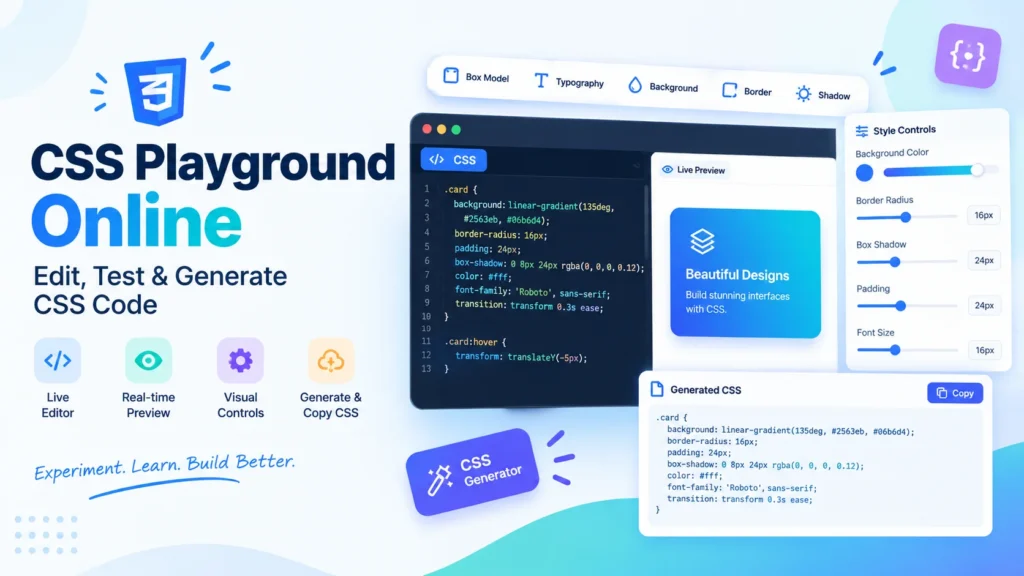
Desire to play around with CSS without having to alternate between your code editor and browser? A CSS Playground is a useful tool that allows you to write, edit, test and preview your CSS in real time.
An Online CSS Editor can speed up the process for beginners who are learning CSS, designers who are trying out various layouts, and developers who are testing out a particular property.
A modern CSS Playground Online will allow you to experiment with colors, spacing, typography, borders, shadows, transforms, positioning, transitions and many more CSS properties without having to wait for the changes to be reflected in your browser.
CSS Playground : https://freeconverterlab.com/css-playground/
What is a CSS Playground?
A CSS Playground is an interactive environment to try out CSS properties and instantly see their effect on an element.
You can make changes and see the changes in a CSS live preview without having to write CSS, save a file, refresh your browser and repeat the procedure many times.
A CSS playground may be helpful for:
- Learning CSS
- Testing CSS properties
- Creating design experiments
- Building UI components
- Troubleshooting styling problems
- Generating CSS code
- Testing responsive layouts
- Playing with graphics effects
- Knowing what the CSS box model is
- Creating reusable styles
It can serve as a visual learning environment for the beginners. It can be used as a rapid prototyping tool for experienced developers when trying out a CSS concept.
What Is CSS Playground Online?
The term CSS Playground Online is used to describe an online environment which allows you to play with CSS without having to install anything extra.
The online playground is very handy, since you can open it in your browser and begin testing CSS.
The following are just some features that a typical CSS Playground online free tool can be expected to offer:
- Interactive CSS controls
- Live preview
- CSS code generation
- Property editors
- Visual styling controls
- Copyable CSS code
- Multiple styling categories
- Real-time updates
Browser-based playgrounds are useful for learning and/or practical development.
What is an Online CSS Editor?
Online CSS Editor allows you to edit CSS on your Web browser.
The classic approach to CSS development is to write the code in an IDE or text editor, and then view it in a browser.
This process can be streamlined with an online editor that brings the editing and previewing process together in one area.
For example, instead of manually writing:
.box {
border-radius: 12px;
padding: 20px;
box-shadow: 0 4px 12px rgba(0, 0, 0, 0.15);
}
You can try out visual controls and watch the changes instantly.
This can be particularly useful when you need to know what a CSS property does since you can try the property’s value in real time.
CSS Editor Online: Edit CSS Directly in Your Browser
You can test individual CSS properties without building up a whole project using a CSS Editor Online.
Try these options:
- Width
- Height
- Margin
- Padding
- Display
- Position
- Colors
- Borders
- Typography
- Backgrounds
- Shadows
- Opacity
- Transforms
- Transitions
- Overflow
The instant feedback helps people to connect CSS code and visual outcome.
CSS Style Playground: Experiment With Design
A CSS Style Playground is about doing experiments visually.
You need not remember all the CSS properties and values; you can experiment with them and see the effect.
You can change, for instance:
Typography – font size, weight, spacing, alignment
Courses: Box Model (width, height, margin, padding)
The width, style, and radius of the borders.The width, style, and radius of the borders.
Move the mouse over the background elements to see the options for changing their color, image, size or position.
Create or remove shadow, opacity and transformation.Create or remove shadow, opacity and transformation.
The layout element is used to display and position the content, as well as handle overflow.
This is useful as a learning resource, and also as a handy CSS styling reference for creating a playground.
Live CSS Editor and CSS Live Preview
The greatest advantage of a Live CSS Editor is the visual feedback in real-time.
The typical workflow might be:
Make a change in the CSS, save it, refresh the browser, view the results, and adjust the CSS.
With a live editor, the process is much easier:
Switch to CSS → Instantly see the result.
This is a CSS Live Preview to help you understand what each property does.
For instance, if the padding is increased, the changes to the content area become obvious. The changes in the border radius instantly reveals how the corners will be rounded up.
This is where a CSS live editor will come in handy for testing out minor design elements.
CSS Playground Online Free: Why Use One?
You can use a free CSS Playground when you don’t want to install software or put together a full development environment.
A CSS Playground is an online free tool which you can use to:
- Practice CSS
- Test individual properties
- Learn through experimentation
- Create design concepts
- Generate CSS snippets
- Test browser-based styles
Try to learn some new CSS tricks!Find out some new CSS tricks!
This can be a handy option for students and beginners who do not have a complex development environment.
Style Elements Without Guesswork Using CSS Visual Editor
A visual editor for CSS allows to link controls to visual results – thus making CSS more understandable.
You don’t have to wonder how padding, margin, border-radius or box-shadow will impact an element, instead, you can make a change to the property and see the impact on the fly.
A visual CSS editor is especially handy for those who are trying to understand the relationship between page layout and CSS properties.
It’s also great for developers to rapidly make sketches of styles before putting them into a bigger project.
CSS Property Editor
A CSS property editor lets you try out specific CSS properties.
For instance you can choose a Property Type that can be:
- Box Model
- Typography
- Background
- Border
- Shadow
- Transform
- Position
- Transition
- Opacity
Values can then be tweaked and effects on the preview observed.
This can help to simplify complex CSS concepts.
CSS Box Model Playground
One of the most important concepts of CSS is CSS box model.
A CSS box model playground allows you to play around with:
- Width
- Height
- Padding
- Border
- Margin
The basic structure is illustrated as follows:
The line is the size of the border.This line is the size of the border.
For example:
.box {
width: 300px;
padding: 20px;
border: 2px solid;
margin: 15px;
}
By altering each of the numbers in a playground, you will gain insight of how the size and spacing of an element changes in a playground.
CSS Typography Editor
The font style and font size play a significant role in the look and readability of a website.
Using a CSS typography editor, you can try out the properties like:
- Font family
- Font size
- Font weight
- Line height
- Letter spacing
- Text alignment
- Text transformation
- Text decoration
For example:
.heading {
font-size: 32px;
font-weight: 700;
line-height: 1.2;
letter-spacing: -0.5px;
}
These values can be modified, and the preview feature of the CSS will be visible.
CSS Border Editor Online
The look of UI components can look completely different when borders are added.
The online CSS border editor lets you try out the following:
- Border width
- Border style
- Border color
- Border radius
Some popular border styles are:
- Solid
- Dashed
- Dotted
- Double
Alternatively, you may try rounded corners with:
border-radius: 12px;
It is especially helpful when creating cards, buttons, input boxes and containers.
Online CSS Background Editor
Using a CSS background editor online, you can try out different backgrounds without editing codes.
You can test:
- Background colors
- Gradients
- Background images
- Background position
- Background size
- Background repeat
For example:
.card {
background: linear-gradient(135deg, #2563eb, #06b6d4);
}
With a visual playground, you can see the effect right away.
CSS Box Shadow Generator
Shadows are used to give depth and separate UI elements a lot of the time.
You can use a CSS box shadow generator to try:
- Horizontal offset
- Vertical offset
- Blur
- Spread
- Shadow color
- Transparency
Example:
.card {
box-shadow: 0 8px 24px rgba(15, 23, 42, 0.12);
}
Rather than guessing values, you can visually experiment on the shadow to get the effect you want.
CSS Transform Playground
Transforms can be used to change the shape, size, rotation or location of an element.
You can play around with various things on a CSS transform playground:
- Translate
- Rotate
- Scale
- Skew
For example:
.box {
transform: rotate(5deg);
}
The most common uses of transforms are hover effects, animation, interactive elements, and visual design.
CSS Position Editor
Another significant CSS concept is positioning.
Use a CSS position editor to learn about:
- Static
- Relative
- Absolute
- Fixed
- Sticky
For example:
.box {
position: relative;
top: 10px;
left: 20px;
}
The investigation of these properties can be done visually, and this can greatly facilitate the understanding of positioning behavior.
CSS Display Editor
The display property determines the involvement of an element in the layout.
You can use a CSS display editor to play around with the values like:
- Block
- Inline
- Inline-block
- Flex
- Grid
- None
Flex and grid are particularly crucial for contemporary web layouts.
CSS Overflow Editor
Overflow property determines what occurs when content overflows an element’s boundaries.
Here are some tips for testing using a CSS overflow editor:
- overflow: visible;
- overflow: hidden;
- overflow: scroll;
- overflow: auto;
This is helpful when using containers, cards, menus, images and responsive layouts.
CSS Opacity Editor
Opacity is the level of transparency of an element.
You can play around with the values of opacity in a CSS opacity editor.
For example:
.overlay {
opacity: 0.6;
}
A visual editor to view the impact of different levels of opacity on text, images, backgrounds, and UI elements.
CSS Transition Editor
Transitions are used to make transitions between CSS states smoother.
An editor for CSS transitions can assist you to try out:
- Duration
- Timing functions
- Delay
- Property transitions
Example:
.button {
This inverts the order of the points.This reversal changes the order of the points.
}
Buttons, cards, navigation and hover interactions are typical usage examples for transitions.
CSS Generator Online
To generate css, there is an online tool that can generate the code based on the visual settings selected.
You can edit controls, and then copy the CSS that has been generated, instead of manually creating it for each property.
This can be helpful to use for:
- Beginners
- Designers
- Developers
- UI prototyping
- Quick CSS experiments
- Learning CSS syntax
If you don’t need to create a development project, a CSS generator free tool can help you out with a quick snippet of CSS.
CSS Code Generator
A CSS code generator generates the CSS syntax from the visual settings you have selected.
If you set the following:
- Padding
- Border radius
- Background
- Shadow
The output that it generates may resemble:
.card {
padding: 24px;
border-radius: 16px;
background: #ffffff;
box-shadow: 0 8px 24px rgba(0, 0, 0, 0.12);
}
You can then copy CSS code and use it in your own website or project.
Edit CSS Online
When you need to make quick edits to your CSS online, a playground (web-based development environment) may be easier to use than a full environment.
It can be particularly beneficial with:
- This is the test for a single property.This is the test for a single property.
- You would like to try out a design.
- You have trouble with a minor problem when using your style.
- You’d like to create a fast snippet
- You’re learning CSS
An interactive CSS editor provides you with an environment where you can experiment.
Test CSS Online
A tool to test the effect of various properties of CSS on an element.
You can test, for instance:
- Spacing
- Colors
- Borders
- Shadows
- Positioning
- Typography
- Transforms
- Transitions
This makes it easier to pinpoint a particular issue in a style and apply changes to it without having to work on a production website, first.This way, you can more easily identify a specific styling problem before making changes to a production website.
The difference between CSS Sandbox and CSS Playground.
A CSS sandbox and a CSS playground serve the same purpose, but can highlight different workflows.
It may be possible to use a sandbox to test HTML, CSS, and JavaScript all together.
A CSS playground can be used to specifically experiment with the properties used in CSS and how the visual style appears.
Either can be helpful for experimenting, but if you’re just testing out CSS, a separate CSS code playground might be more handy.
Interactive CSS Editor for Beginners
It can be challenging to learn CSS when you’re only reading the code.
Immediate feedback from an interactive CSS editor.
For example:
- Select a property.
- Change its value.
- Watch the preview.
- Compare the result.
- Copy the created CSS.
This forms a practical learning cycle:
Experiment → Observe → Understand → Apply
Rather than having to know the names of all the CSS properties, one can learn by observing the impact of the changes on the design.
Create and test CSS with the developer’s playground
Also, a CSS playground can be used as a rapid prototyping tool for developers.
For instance, prior to adding a brand-new card layout to a web page, one can test:
- Border radius
- Box shadow
- Padding
- Typography
- Background
- Hover effects
- Transforms
- Transitions
If the design is looking good then copy the CSS and add it to the project.
This can minimize the time spent on trying things out in the primary code base.
CSS Playground for Web Designers
For designers familiar with visual design, but prefer not to enter all CSS properties, it could also be helpful to use a CSS design tool.
A visual workflow that is easier to experiment with:
- Colors
- Spacing
- Typography
- Borders
- Shadows
- Layout
- Effects
The resulting CSS can be used as a template to implement.
How to Use a CSS Playground
An average CSS playground process is straightforward.
Step 1: Choose a CSS Property
Pick the category you wish to try out.
Step 2: Adjust the Values
Update the controls which are available.
For instance, modify the padding, border radius, font size, or amount of shadow.
Step 3: Watch the Live Preview
The preview automatically updates when you change the CSS.
Step 4: Review the Generated CSS
Verify the CSS that has been generated by what you’ve selected.
Step 5: Copy CSS Code
Simply copy the CSS snippet and apply to your website or project.
Step 6: Test It in Your Project
When testing the final CSS, it is always best to run it in the real website because the rest of the CSS and layout rules may have an impact on the results.
Benefits of a Visual CSS Playground
There are several advantages to a “visual” CSS Playground.
Faster Experimentation
Multiple values can be tested in quick succession.
Easier Learning
The visual feedback brings a connection between the CSS properties and their effects.
Quick Prototyping
Design ideas can be developed without the creation of a full page.
Better Troubleshooting
Each CSS property can be separated.
CSS Code Generation
It is possible to create CSS from visual settings.
Convenient Testing
You could try it out yourself in your browser.
The difference between CSS Playground and Traditional CSS Editing
Traditional CSS development is very powerful, however there can be several steps.
Traditional workflow
Open editor → Write CSS → Save → Refresh → Inspect → Adjust
Playground workflow
Select property → Adjust value → Live preview → Copy CSS
A playground does not take the place of a professional code editor. Instead, it offers a convenient terrain of experimentation, learning and quick styling.
Generate CSS Code Online
A visual playground can help to quicken the process if you need to produce CSS code online.
Try out a design until you achieve the resulting look and copy the generated CSS.
For example:
.example {
padding: 20px;
border-radius: 10px;
opacity: 0.9;
transition: all 0.3s ease;
}
The code generated can then be tailored for your particular project.
Copy CSS Code and Use It in Your Website
Once you’ve developed a style, you can copy the CSS code from the playground and paste it in your project.
There are several ways to add CSS to your website depending on your website:
- An external stylesheet
- A theme stylesheet
- A custom CSS section with title.
- A component stylesheet
- A page-specific stylesheet
If you use the generated CSS in production, be sure to remove any properties from the generated CSS that are not needed and then test the CSS against existing styles.
Download HTML With CSS
Some playgrounds may also offer choices to download HTML with CSS.
This can be beneficial if you wish to save your experiment as a separate example.
A downloadable HTML file may be of assistance to you if you:
- Save a design experiment
- Share a prototype
- Test a component in the local environment.
- Use a reusable model.
- Keep editing; do not stop editing outside the playground.
Common CSS Properties to Experiment With
Explore many categories using a good CSS playground.
Box Model
- Width
- Height
- Margin
- Padding
- Box sizing
Typography
- Font family
- Font size
- Font weight
- Line height
- Letter spacing
- Text alignment
Background
- Color
- Image
- Gradient
- Position
- Size
Borders
- Width
- Style
- Color
- Radius
Effects
- Box shadow
- Opacity
- Filters
Layout
- Display
- Position
- Overflow
- Flexbox
- Grid
Motion
- Transform
- Transition
- Animation
These categories can be useful when experimenting to create a greater understanding of modern CSS.
Tips for Better CSS Experimentation
Start With One Property
Do not change multiple properties simultaneously. Test each category individually to make sure you know what the result is.
Use Small Changes
Gradually increase the values up instead of a sudden change.
Compare Results
Test multiple values and observe the difference in the visuals.
Keep Your CSS Organized
Organize properties into groups.
Test in Your Real Project
A playground provides an isolated environment. Conflictive CSS or styles that were inherited by the actual website may exist.
Check Responsive Behavior
A design which is visually appealing on the desktop may need some tweaking for smaller screens.
Who can use a CSS Playground?
You can use a CSS Playground for:
Beginners
Visual experimentation to learn CSS.
Students
Use CSS properties without creating full projects.
Web Designers
Try out different visual styles and UI concepts.
Front-End Developers
Quickly test CSS properties and effects.
WordPress Developers
Create prototypes of the website before applying custom CSS to style it.
UI/UX Designers
Learn about typography, spacing, colors, borders and effects.
Final Thoughts
A CSS Playground can help you try out CSS without having to toggle between a code editor and browser.
A visual environment can make experimenting with CSS faster and easier, whether you’re using an Online CSS Editor, CSS Editor Online, CSS Style Playground, or Live CSS Editor.
A playground can be used to play with the box model, typography, borders, backgrounds, shadows, positioning, opacity, transforms, transitions, and more CSS properties.
It can also be used online as a CSS generator, creating and copying CSS code according to your visual setting.
It’s an applicable knowledge for the beginners. It is helpful for designers as a CSS styling tool. It’s a handy CSS testing tool and quick prototyping environment for developers.
When you need to make changes to CSS online, test out a CSS property, or run a quick, no-hassle design experiment, experiment with a visual CSS playground, and look at the result in realtime.
Frequently Asked Questions
1. What is a CSS Playground?
A CSS Playground is an interactive area to try out the properties of CSS and watch the results of your experiments in real time with live preview.
2. Is there a free CSS Playground online?
Yes. You can play with CSS without software on your desktop using some tools in the browser. Each tool has its own features.
3. What is an Online CSS Editor?
An online CSS editor lets you edit or create CSS in a Web browser and may offer a real-time preview display of the effect of the changes.
4. Can I edit CSS online?
Yes. Use the online CSS editor or playground to edit, test and try CSS styles online.
5. What is a CSS live preview?
A CSS live preview will show you the visual effect of a CSS change as soon as it is typed, so that you can see the effect of a property on an element.
6. Can a CSS Playground generate CSS code?
For many CSS playgrounds, it’s possible to produce CSS based on the features and values you choose. It will produce code that can then be copied.
7. What can I test in a CSS Playground?
Test box model, typography, background, borders, shadows, positioning, opacity, transforms, transitions, display and overflow properties.
8. What is a CSS box model playground?
A CSS box model playground allows you to try out width, height, padding, borders and margins to see how they affect the size and spacing of an element.
9. Can I use a CSS Playground to learn CSS?
Yes. Making a visual playground can help to make CSS easier to understand, since code changes can be reflected visually.
10. Can developers use a CSS Playground?
Yes. A playground is a great place to rapidly test, prototype, debug, and experiment with visual styles before incorporating them into a project.
11. What is the difference between a CSS Playground and CSS editor?
A CSS editor is a text editor that is used to write or edit CSS. A CSS playground typically includes interactive controls and live previews, and experimentation features.
12. Can I copy CSS code from a playground?
Yes, the generated CSS is available to be copied and modified to create the CSS for your website or application.
