
PDF vs Word vs Google Docs: Which Format Should You Actually Share?
As you’re preparing to send a document, you wonder: Do I need to send a PDF, Word document, or a link to Google Docs?
This is a matter of what you want the recipient to do with the file.
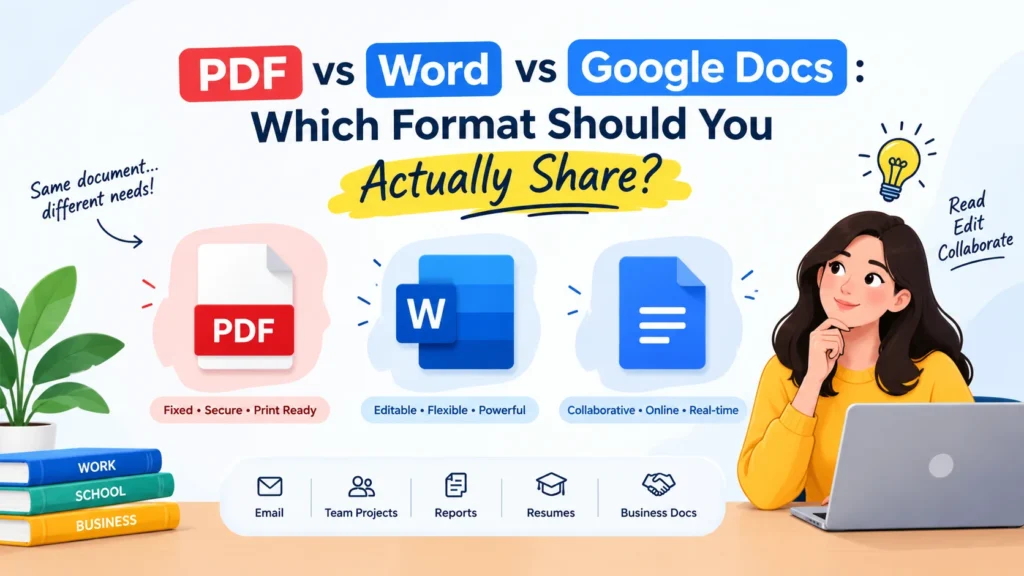
If you need the document to appear exactly the same on all devices, PDF will generally be your better option. If the recipient requires modification of the information, it may be better to use a Word document (DOCX). Moreover, if multiple people need to work on the same document simultaneously, Google Docs can help make collaboration easier.
Knowing the difference between PDF, Word, and Google Docs can assist you to select the appropriate document format for any email, application, business correspondence, assignments, contracts, reports, or daily document sharing.
In this guide, we’ll compare PDF vs Word, PDF vs Google Docs and Word vs Google Docs and help you with which document format to use in what circumstance.
PDF to Word Converter : https://freeconverterlab.com/pdf-to-word-converter/
Word to PDF Converter : https://freeconverterlab.com/word-to-pdf-converter/
How to choose between PDF, Word and Google Docs?
To select the format for sharing you need to have a clear understanding of the purpose of each format.
PDF is an acronym for Portable Document Format. The PDF format is used to ensure that the look and layout of a document remains consistent on all devices, operating systems and applications.
The most typical uses of PDFs are:
- Resumes and CVs
- Invoices
- Contracts
- Reports
- Forms
- Certificates
- Business documents
- Government applications
- Printed documents
- Official submissions
The greatest benefit of the PDF file format is the ability to retain the document formatting.
Word
The DOCX file format is used for Microsoft Word documents. Word is used for the creation and editing of documents.
Word is helpful if you want to create a document that you want to be editable for another user.
Common uses include:
- Drafts
- Business letters
- Reports
- Assignments
- Proposals
- Ideas for editing resumes.
- Documents that require editing
- Templates
- Google Docs
Google Docs
Google Docs is an online document editor that lets people create, edit, comment and collaborate on documents via a web browser.
Google Docs is particularly useful for:
- Team collaboration
- Group projects
- Shared documents
- Real-time editing
- Online document editing
- Comments and suggestions
Any files that are frequently changed.Those documents that will be edited often.
Which is better: PDF vs Word?
The primary difference between PDF and Word is:
Is it okay to have it edited, or is it okay to maintain some uniformity of appearance?
If you have a final version, and need to maintain the layout, it’s best to use PDF.
Word is best when the document is being created or edited.
Feature | Word | |
Editing | Limited | Excellent |
Formatting preservation | Excellent | Can vary |
Collaboration | Limited | Good |
Printing | Excellent | Very good |
Compatibility | Excellent | Good |
File sharing | Excellent | Good |
Professional submissions | Excellent | Good |
Track changes | Limited | Excellent |
Templates | Good | Excellent |
Document security | Good | Good |
So, which is better, PDF or Word? That isn’t a hard and fast rule that applies to each situation.
Print in PDF format for a completed document (not for a form).
When recipient will need to edit, use Word.
PDF vs Google Docs: Which Is Better?
There’s not much to compare PDF and Google Docs, but it’s mostly about final delivery versus collaboration.
PDF is a document format that cannot be edited. Google Docs is an online editing space that allows for collaboration.
Choose PDF when:
- The document is completed
- The formatting needs to be consistent.
- You are sending an official document
- A printable version is required.
- You do not want the recipient to be able to accidentally change the content.
- You must have an attachment to send in your e-mail.
- You wish the original layout is to be maintained
Use Google Docs when:
- The document needs to be edited by more than one person.
- You need to collaborate in real time.You need collaboration in real time.
- You want feedback and feedback to go the other way!You want feedback, and you want suggestions!
- The document will be continually revised
- You’re looking for convenient online document editing tools.
- You don’t want to email multiple copies of the same file
- So, when deciding between PDF or Google Docs, take into account whether it’s a final or a working document.
Word vs Google Docs: Which One to Use?
The Word vs Google Docs debate is not the same as PDF, since they are both developed to create and manipulate documents.
Microsoft Word offers a wide range of document-editing capabilities on the desktop and allows for complex document formatting.
Google Docs is all about web-based editing and collaboration.
Word is useful for:
- Advanced formatting
- Offline editing
- Complex documents
- Professional templates
- Detailed page layouts
- Documents with lots of formatting controls
Using a DOCX file:
- Google Docs can be used for:
- Real-time collaboration
- Group projects
- Sharing documents by linking
- Comments and suggestions
- Online document editing
- Collaborate with other devices
When choosing between Word or Google Docs for a document, consider your workflow.
Word can be handy if one user is the one who creates and formats a document.
Google Docs might be more useful if multiple people need to edit the same document at the same time.
Which Document Format Should I Use?
The best way to determine the document format to use is to think about what you’re going to do with the document.
Send a PDF if:
You want the recipient to read, print, review or archive the document without altering its layout.
Send a Word document if:
You wish the recipient to modify, amend or reuse the document.
Share Google Docs if:
Multiple people need to edit, comment and collaborate online.
This basic guideline applies to numerous situations where you’re sharing documents around your home.
Best Document Format for Sharing
Determine the document’s purpose to choose the most appropriate document type.
When it comes to a final document, PDF is often a useful file format as the recipient will view the document in the layout you provided.
DOCX is typically better for editing purposes in an editable document.
Google Docs can be more convenient to use when collaborating.
Situation | Recommended Format |
Final business document | |
Resume submission | |
Government application | PDF, if accepted |
Printing | |
Document editing | Word |
Sending an editable template | Word |
Team collaboration | Google Docs |
Group assignment | Google Docs |
Real-time feedback | Google Docs |
Final version by email | |
Draft requiring revisions | Word |
Shared working document | Google Docs |
Always ask the recipient’s needs. Certain organizations prefer documents in the DOCX, PDF or other format.
Should I Send PDF or Word Document?
When deciding on whether to send PDF or Word documents, ask yourself if the recipient will need to make changes to the document.
Use PDF, if the document is finalized.
When you’re sending, for instance:
- A completed resume
- An invoice
- A signed agreement
- A final report
- A certificate
- A completed application
- A brochure
PDF is usually fine as you want to keep the document formating.
Send Word when editing is required
For example:
- Your report must be edited by a colleague.
- The client must add information
- A manager must make an edit to a proposal
- A recruiter is asking for a DOCX resume
- There has to be someone who reuses your template.
Word offers an editable document in those instances that it is easier to edit.
Should I Share PDF or Word?
It’s a control versus flexibility thing that frequently comes down to the question: Should I share PDF or Word?
PDF gives you:
- Consistent appearance
- Better layout preservation
- Easy printing
- Convenient sharing
- Broad compatibility
- A more finalized presentation
Word gives you:
- Easy editing
- Track Changes
- Comments
- Flexible formatting
- Reusable content
- Improved document revision process
If editing the document by the other person is not in the cards, you may want to use PDF.
When you’d like the person to edit it, Word is typically more useful.
PDF vs Word for Editing
For editing a PDF vs Word, the traditional editing process usually favors Word.
The files are DOCX files to be edited. You can easily change:
- Text
- Fonts
- Headings
- Tables
- Images
- Margins
- Page breaks
- Paragraph spacing
You can also edit PDFs using a specialized PDF editor, but depending on how it was created, editing a PDF may be more complex.
An editable PDF doesn’t necessarily make it just as flexible as a Word document, but it could.An editable PDF could have interactive boxes or editable boxes, but that doesn’t mean it is as flexible as a Word.
So, if you’re going to be making a lot of revisions to your documents, you might find Word easier to use.
PDF vs Word for Printing
When printing a document, PDF is generally favored over Word for finished documents.
Why?
PDF is a format that keeps the visual layout of the document.
Several factors can cause a Word document to appear differently:
- The computer’s installed fonts.Installed Computer Fonts.
- Word version
- Printer settings
- Page size
- Margins
- Images
- Tables
- Line spacing
To keep the desired look on the printed document, you could convert the final document to PDF.
Another common use for PDF is if you want to take a document to a print shop, since it ensures that the document is set in a fixed format.
PDF vs Word for Collaboration
In the comparison of PDF vs Word for collaboration, Word has more traditional editing capabilities.
Word can include the following features:
- Track Changes
- Comments
- Editing
- Version management
- Document comparison
However, Google Docs is built on the principles of online collaboration.
Google Docs also may make it easier to get multiple people to work on the same document at a time.
For this reason:
PDF → End of review and sharing.
Word → structured editing & revisions
Google Docs (real time collaboration)
When to Use PDF Instead of Word
Understanding when it is appropriate to share a PDF rather than a Word document can avoid format issues and edits.
Use PDF when:
1. The document is finalized
Once you’ve completed your document, PDF can be used as the final version.
2. Formatting matters
When the exact layout, spacing, fonts, images and page structure are critical to the visual presentation, PDF preserves them.
3. You are submitting a document
PDF files are accepted and/or requested by many applications, organizations, and professional processes.
Follow the directions for each submission.
4. You’re sending a document by email
PDF may be a convenient format when you want to send a finished document via email.
5. You want a print-ready document
PDF is a good choice for maintaining a fixed page layout.
When to Use Word Instead of PDF
In certain instances there are situations that can be utilized with Word instead of PDF.
Choose Word when:
1. The recipient needs to edit the file
The DOCX file that is created is for use in editing.
2. You’re sharing a draft
When the document is not completed, Word simplifies the task of revisions.
3. You’re providing a template
Word templates can be easily customized.
4. Track Changes is important
Word contains the well-known facilities for reviewing and tracking document changes.
5. The recipient specifically requests DOCX
Ensure that documents are completed in the appropriate format.
When to Use Google Docs
Understanding the when and why of Google docs can be especially beneficial for collaborative projects and teams.
When you need to:
- For several people to gain access
- Real-time editing is required.
- Users should comment on a designated section.
- You don’t want to send multiple versions of a file from email.
- It will be updated on a regular basis.
- You must have access to the browser.
- You need a quick, easy online workflow for collaboration.
Everyone can work on the same shared report and not have to send Report-Final.docx, Report-Final-2.docx, and Report-Final-3.docx.
PDF vs Word vs Google Docs for Email
Which document type is best for e-mail?
In the case of a completed document, PDF may be a convenient option.
Word can be better if it’s an editable document.
Google Doc link can be shared for Collaborative work.
Example
Suppose you are sending an “out” business proposal.
PDF:
Best used when you want the recipient to read the last proposal.
Word:
If the recipient will need to make edits or changes to the proposal, it will come in handy.
Google Docs:
Useful when you want the recipient to work on and give feedback on the document.
So, the ideal way to send documents is dependent on the actions you want the recipient to take.
Best Format to Share a Document: Quick Decision Guide
When you don’t know what format to use to share a document, follow this simple guideline:
Need someone to read it? → PDF
Need it to be edited? → Word
Need to work on a document with some others? → Google Docs
Would you like to print the finished product? → PDF
Keep track of changes in documents: Word
Need to collaborate in real-time? → Google Docs
Desire to keep the formatting of documents? → PDF
Looking for an editable document? → Word
Need online document editing? Google Docs is it!
Resumes in PDF, Word or Google Docs?
Some positions require a great deal of skill in crafting a resume.
PDF is helpful for many job applications as it maintains the resume’s format and presentation.
But some employers or applicant tracking systems might be looking for DOCX.
The relevant guideline is:
Adhere to the requested format by the employer.
PDF is a good option to use if you’re sending out a finalized resume and no format is specified.
If the resume will be submitted for editing by another person, you might want to use Word.
PDF, Word or Google Docs for Business Documents?
All three formats can be used for business documents, depending on where they are in the process.
Draft stage
Creating and editing the document can be helpful with Word or Google Docs.
Collaboration stage
Multiple team members may find it helpful to review and edit Google Docs.
Final stage
If anyone wants to share the completed work, PDF format may come in handy.
A possible procedure could then be:
Google Docs/Word → Review & Edit → PDF → Final Sharing.
PDF vs Word vs Google Docs: Document Compatibility
Compatibility is yet another crucial factor to take in mind.
PDFs are supported on many computers, smartphones, tablets and operating systems.
DOCX is also popular, but sometimes the formatting will vary when opened in other software or environments.
Google Docs is used mostly via the web, which makes it easy to use from any device that has an internet connection.
If you’re sending a document, think about the type of program the person using it takes into account.
Document Security: PDF v Word v Google Docs
There is another security concern for documents as well.
PDFs can include things like:
- Password protection
- Permissions
- Digital signatures
- The use of encryption (depending on software)
A word document can be password protected and many other security features are available.
Viewing, commenting and editing permissions are controlled through account and sharing settings in Google Docs.
But no one format offers 100% security.
Use appropriate passwords, permissions, encryption and secure sharing practices for sensitive documents.
Accessibility Considerations
Consider document accessibility when sharing documents with assistive technologies users.
A document should include the following:
- Clear headings
- Meaningful document structure
- Readable fonts
- Appropriate contrast
- Provide alternative text for every image.Use alternative text for images, if at all possible.
- Proper table structure
- Logical reading order
In addition to the file format the accessibility of the document is dependent on how it is created.
An untagged and not well structured PDF is not so user friendly, whereas a tagged and well structured PDF can make a huge difference.
The same is true for Word and Google Docs.
How to make Word to pdf?
Yes.
A typical workflow after a document is complete is to convert it to PDF.
Create, edit the document in Word and then convert to PDF before sharing.
You can edit it with the same flexibility you enjoy with Word and can also have a fixed PDF version to distribute in the end.
Many other document types can also be processed in the same way.
Do you want to convert PDF to Word?
PDF-to-Word conversion tools can indeed transform PDF files into Word documents that can be edited.
This can be helpful when:
- You will have only the PDF version.
- To edit existing content, you must have the Edit Mode enabled.
- You have to extract text from the document.
- You need to share information but don’t want to be repetitive.
- You have to have some serious changes.
But the quality of conversion may be different depending on the complexity of the layout, tables, scanned documents, unusual fonts, and images.
Check the Word version before using or sharing.
Common Mistakes When Sharing Documents
The wrong format can cause unwarranted issues.
Mistake 1: Sending Word when the document is final
If the document needs to be read only, then an editable Word file may not be required.
Mistake 2: Sending PDF when editing is required
It may make editing a PDF more challenging.
Mistake 3: Sharing a Google Docs link without checking permissions
Ensure recipient has the right access.
Mistake 4: Ignoring submission requirements
If a specific request for DOCX, PDF etc. is requested, do this.
Mistake 5: Not checking the final document
When you’re ready to send a document, open the final and check:
- Page breaks
- Fonts
- Images
- Tables
- Margins
- Spacing
- File name
- Links
- Overall formatting
PDF vs Word vs Google Docs: Pros and Cons
Pros
- Excellent layout preservation
- Easy to share
- Good for printing
- Widely supported
- Use it to create documents for the end.
- Professional presentation
Cons
- Not as easy to edit
- Cooperation may be restricted
- The modification of complex PDFs can be challenging.
Word
Pros
- Excellent editing capabilities
- Flexible formatting
- Accepts feedback and changes
- Good for drafts
- Easy to create templates
- Supports DOCX
Cons
- The formatting may differ on occasion.
- Large documents can be more complex
- May not always be suitable for end use
Google Docs
Pros
- Real-time collaboration
- Easy sharing
- Online document editing
- Comments and suggestions
- It’s available on various devices.
- Eliminates multiple iterations of duplicate versions of files
Cons
- Internet access may be a priority
- Adding or removing permissions should be taken care of.
- There may be advanced formatting that is different from the desktop Word workflow.
- A common link might not be suitable for all official submissions
PDF vs Word vs Google Docs: Final Comparison
The simplest way to remember the differences is:
Your Goal | Best-Fit Format |
Final document | |
Preserve formatting | |
Printing | |
Emailing a final document | |
Editing | Word |
Drafting | Word |
Track Changes | Word |
Reusable template | Word |
Team collaboration | Google Docs |
Real-time editing | Google Docs |
Comments and suggestions | Google Docs |
Online document editing | Google Docs |
The choice between PDF, Word and Google Docs is not so much a question of which file type is superior in general. It’s a matter of being able to pick the format that suits the intent of your document.
Therefore, What Format Should I Use to Share Documents?
If you still don’t know what you should do to share documents, this simple rule can help you:
PDF for finals.
Word – Editable documents.
Google Documents (collaborative documents).
In many common scenarios, a document can even go through all three of these formats on the journey through its life.
You could draft the document in Word or Google Docs, work with other staff members, complete it and then save it as a PDF for final distribution.
That workflow is a marriage of the best of each format.
Conclusion
Knowing the difference between PDF, Word, and Google Docs will make it easier to share documents.
Use PDF if you need to keep the formatting of a document, make a final copy, print a document, or share a professional copy.
Word is recommended where a document that can be edited and advanced formatting, revisions or Track changes is needed.
Google Docs really comes in handy for collaborating on documents, editing in real-time, commenting, and online editing.
So, the next time you ask should I send PDF or Word, PDFiOrWord or which document format should I use, keep this one simple:
What does the recipient need to do with the document?
If they have to read it → PDF.
If they need to modify it → Word.
If they have to work together with you → Google Docs.
The right format will enable document compatibility, ensure that the formatting is preserved, minimize unwarranted changes to the document, and ease document sharing significantly.
Frequently Asked Questions
1. Is PDF or Word better for sharing documents?
This depends upon the intent. PDF is normally used for finalized documents with a particular focus on layout fidelity. Word is good use when the recipient requires editing the document.
2. Should I send PDF or Word for a resume?
Obey the employer’s directions. PDF is sometimes helpful for a finalized resume if none is specified.
3. Is PDF better than Google Docs?
There is no universal best. PDF’s are made to be used for documents that are set, finalized and not going to be edited, whereas Google Docs are created to be edited and collaborated on in the online.
4. When should I use Word instead of PDF?
Use Word when the recipient requires to edit, revise, comment on, or reuse the document.
5. When should I use Google Docs?
When more than one person is collaborating, editing, commenting or reviewing a document online, use Google Docs.
6. What is the best document format for email?
PDF can be used for a finalized document, when it’s practical. If the recipient has to make edits, Word might be a better choice. If collaborating, consider using a Google Docs link.
7. Is DOCX an editable format?
Yes. DOCX is a Microsoft Word document file format for creating and editing a document.
8. Can I convert Word to PDF?
Yes. When a printable, finalized copy with a set layout is required, word documents can be exported or converted to PDF.
9. Can I convert PDF to Word?
Yes. PDF to Word conversion will produce a Word document, but may need some tweaking if it’s a complicated layout or a scanned PDF.
10. What is the best format to share a document?
PDF can be a good option for a final document. For editing, use Word. Google Docs might be helpful for real-time collaboration.
11. Which format is best for printing?
PDF is the file format that is widely used for printing finalised documents, since it works well with maintaining the page layout.
12. Which format is best for collaboration?
Google Docs is created particular for online joint effort, whereas Word offers strong traditional editing and review attributes.
